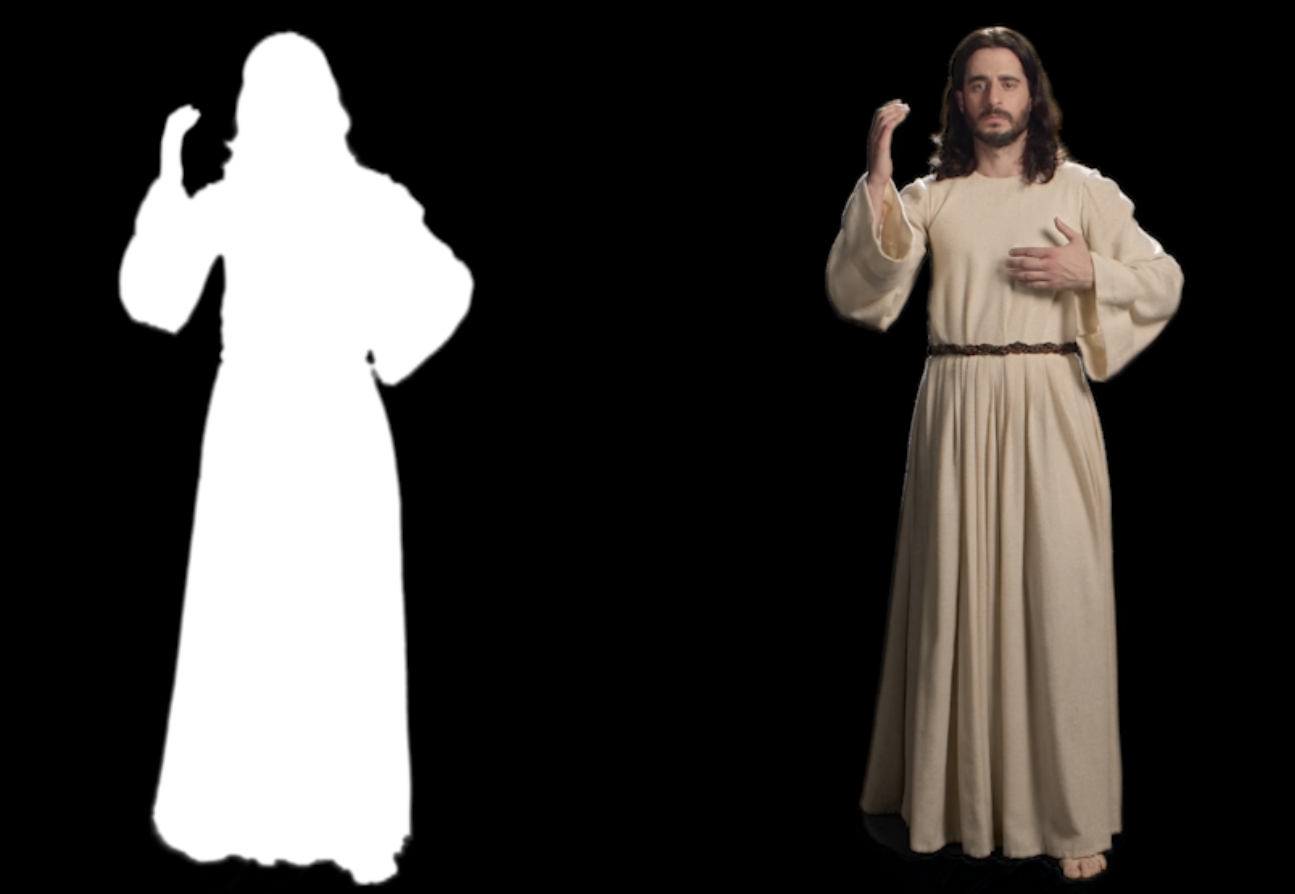
The other day I had some rotoscoped footage we wanted to enhance with Topaz Video. The transfer went well, but sadly Topaz Video is very pernickety when it comes to retaining alpha or opacity. Although it’s apparently a feature, I’ve never been able to make it work reliably. Hence I thought I’ll use the original alpha channel (left) and combine it with the processed footage (right).
This meant combining a fill track and a separate alpha track as the mask. But how does one do this in Premiere? Thankfully I’ve worked it out, so let’s make a note before I forget again.
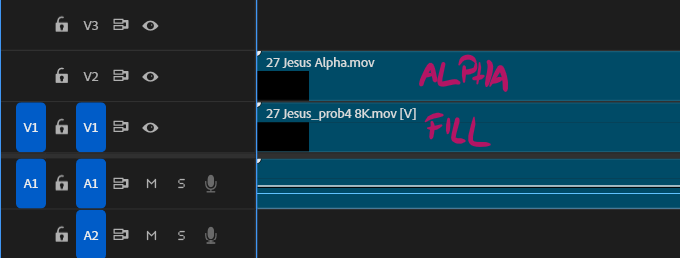
Let’s stack up the footage so that the fill (image) is on track 1, and the alpha (cutout opacity) above it on track 2.
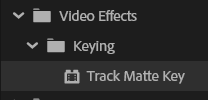
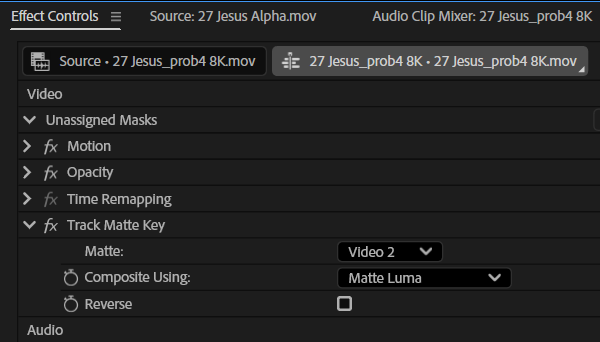
Now we add a Track Matte Key effect to the fill.
In the Effect Controls panel, we select the track we want to use as our matte (Video 2 in my case). This makes our footage visible. Now switch Composite Using from “Matte Alpha” to “Matte Luma” and it’ll punch out the opacity.
And that’s it! Now we can export it out again with the alpha channel intact.

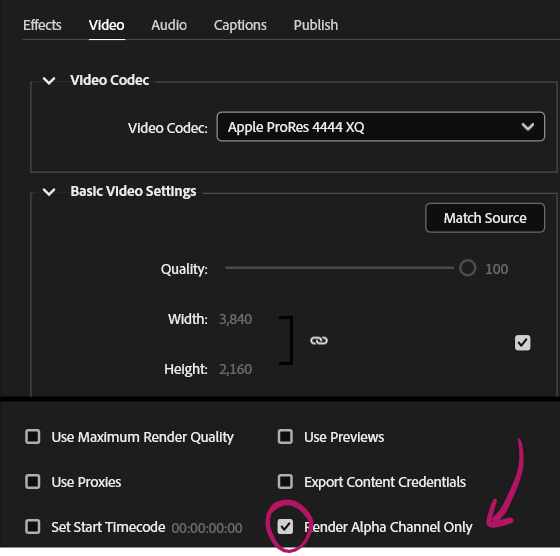
If you’re wondering how to extract an alpha channel from existing footage, Media Encoder has an option for that (Render Alpha Channel only).