With Cartoon Animator 5.3 we got this exciting new feature called Puppet Stage. With it we can trigger pre-defined motions by way of keyboard hotkeys. This is very simple to implement with single objects and characters, but not quite as intuitive when multiple objects come into play. Here’s how to do it.
For my simple scene I have a wiggly jelly desert, and a caterpillar. Each object is a prop with their separate idle motion. One hotkey is setup so they both trigger a different animation.
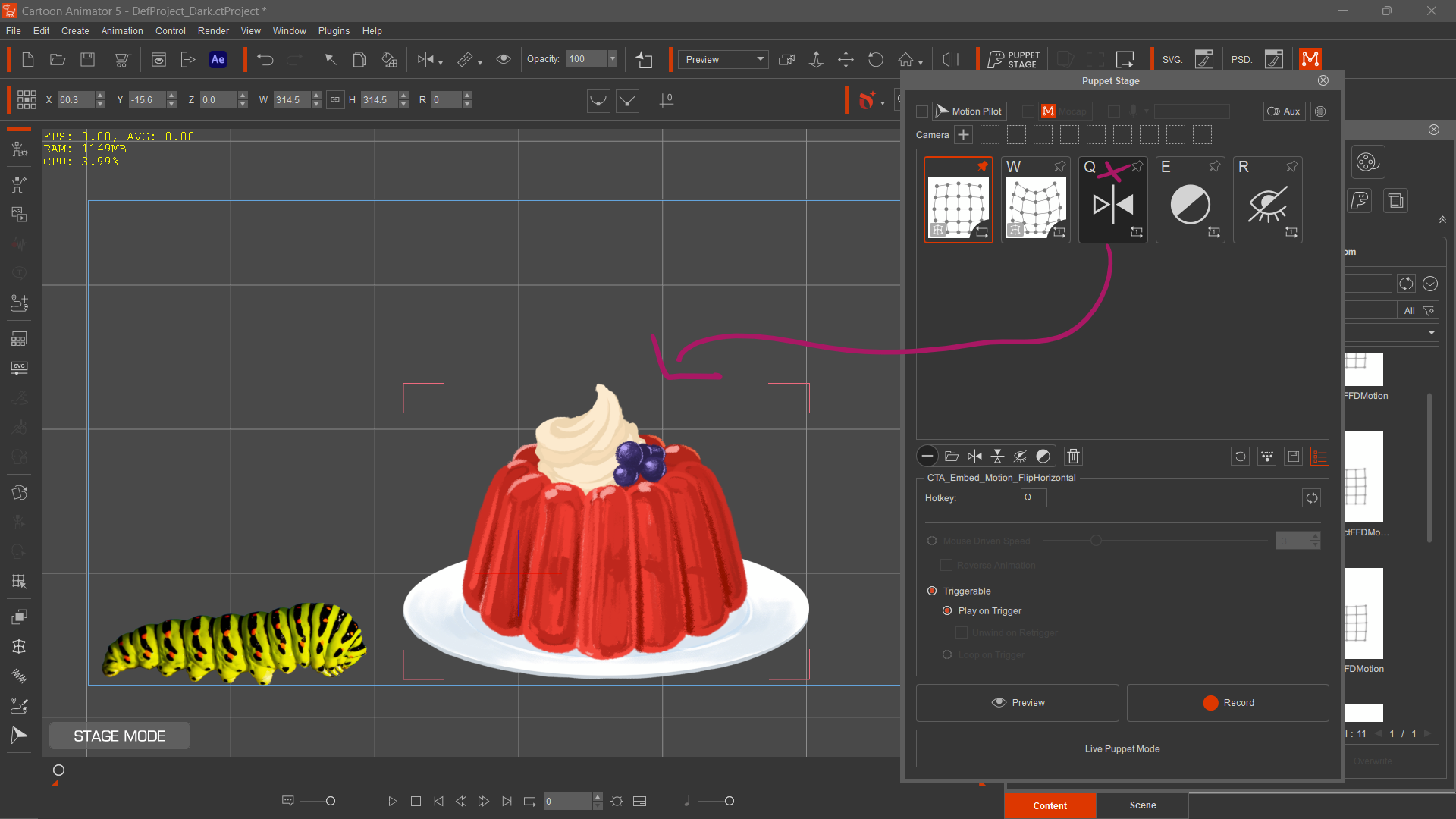
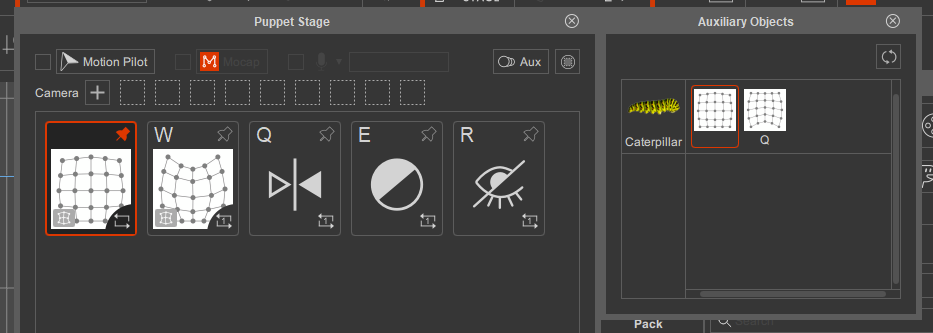
With the Puppet Stage panel open, and the pudding selected, we can see that I’ve set it up to flip when I press Q. It’ll wiggle thanks to spring bones and looks quite funny.
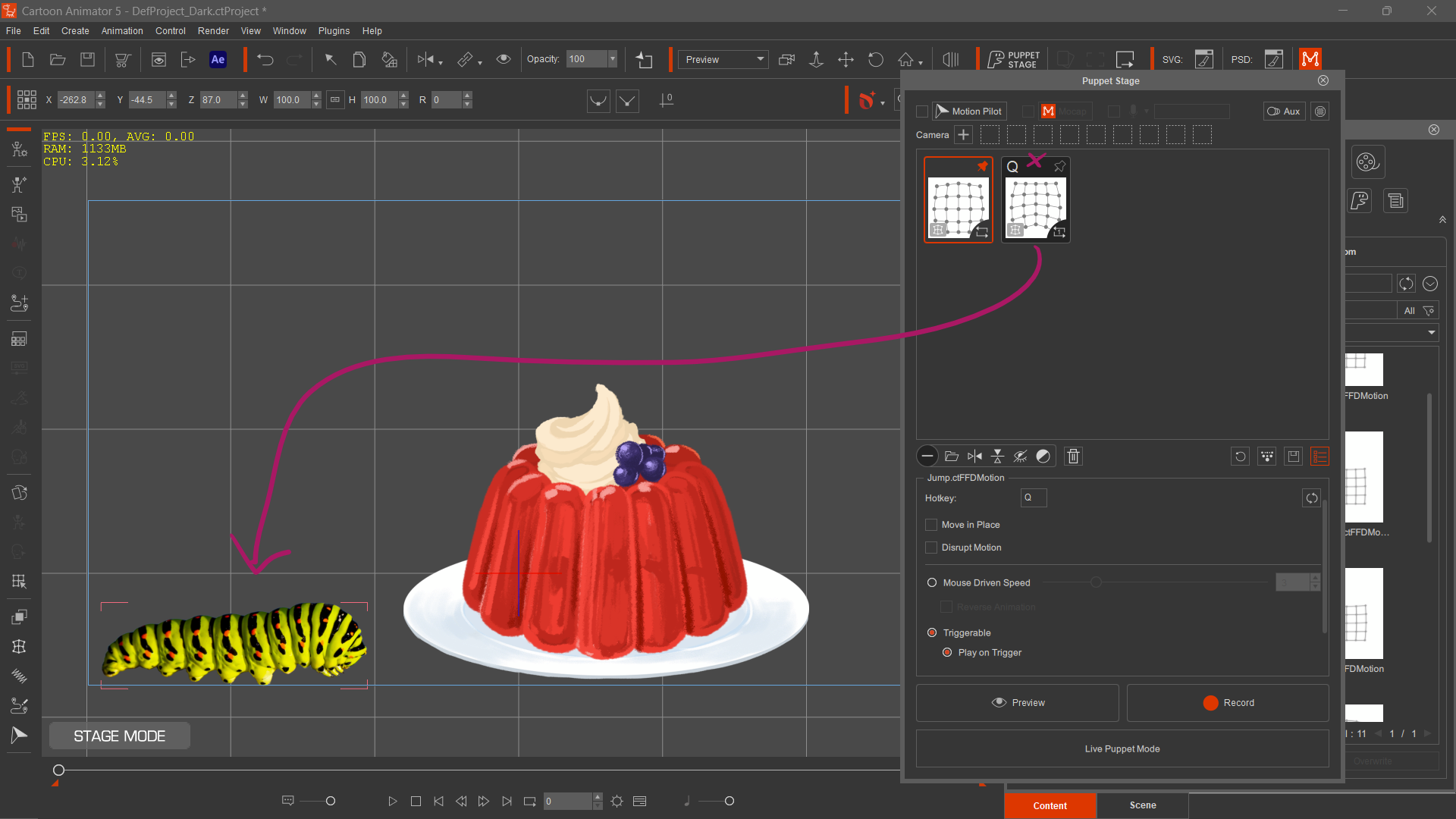
When I select the caterpillar, we can see that an FFD motion is triggered with Q. Selecting either object for preview will work, but the other object will not animate. Even if we select both objects, they will follow the animations of the object that was selected first (the “leader” if you will).
To make them work simultaneously and obey their individual animation cards, we must take a look at the Flock Settings of the follower object(s). Let’s say the pudding is the leader, and the caterpillar is the follower. Select it and click on the icon with several little dots (I suppose one large dot is being followed by several smaller ones).
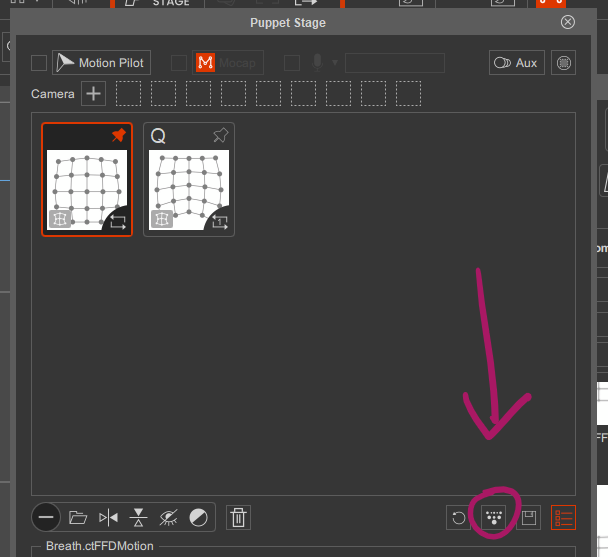
This will bring up the Flock Settings for this object. An option called Mimic Leader is enabled by default, which is why the same animations are executed when we trigger them. Disable this option and both objects will obey their own animations.
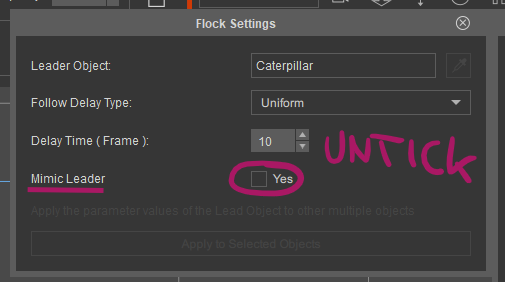
Note that if you have multiple objects in your scene, you can select them together, change this setting and the apply to all selected (greyed out in the above screenshot).
Now select your main object first (pudding in my case), hold CTRL and select the other object(s), and then press preview. Everything works as expected. If all goes well, the Aux panel should bring up your follower objects, while showing the leader’s animation cards.
Thanks to David Arandle for this tip.