We work a lot with animated image plates, typically of rotoscoped actors (Unreal Engine calls them Media Plate Actors). That way we can position and integrate them into the 3D world. One of the hard parts is moving the camera to a different position while leaving the plate sizing intact as we make changes to our shots. The easiest way to accomplish that is by attaching the media plate actor to the camera. That way, when we move the camera, the plate stays in exactly the same position while the environment changes around it.
I keep forgetting how to set this up, so here’s how to do it. I’m assuming here that this will be used as part of a shot (i.e. separate level sequence), so both the camera and the media plate are spawnables. They don’t have to be, but using spawnables allows for much greater flexibility when setting up a master sequence.
In principle we
- add the media plate and camera to your Level Sequence
- give the media plate an Attach Track
- pick your camera on the Attach Track
- adjust the media plate forward (positive X axis)
Here’s what this looks like when its finished:
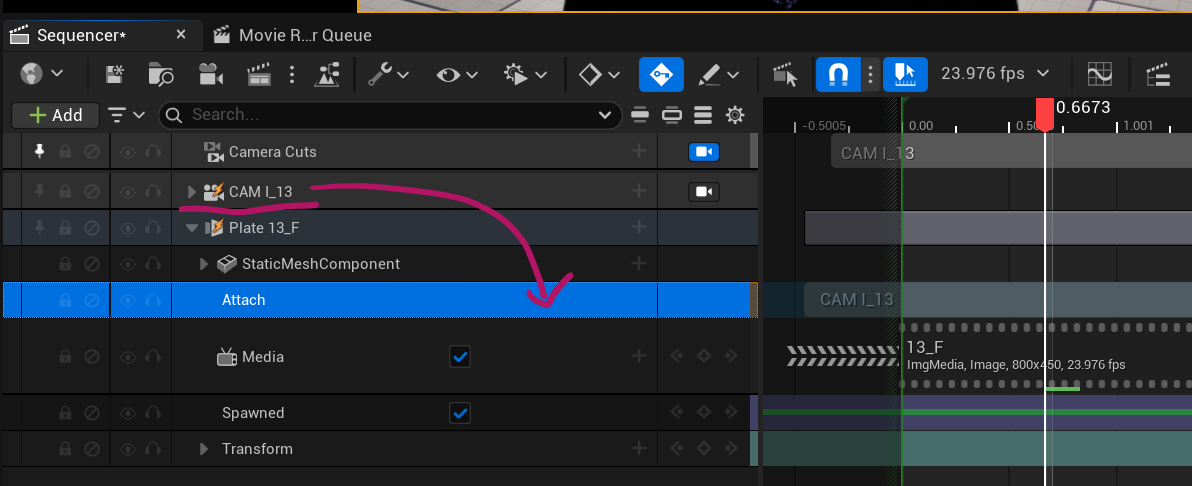
Let’s go through this step by step now.
Creating the Attach Track
After adding all elements to the sequence, click on the plus icon next to the image plate and choose Attach. From the fly-out menu, pick your camera (under This Sequence). Mine is called CAM 1.
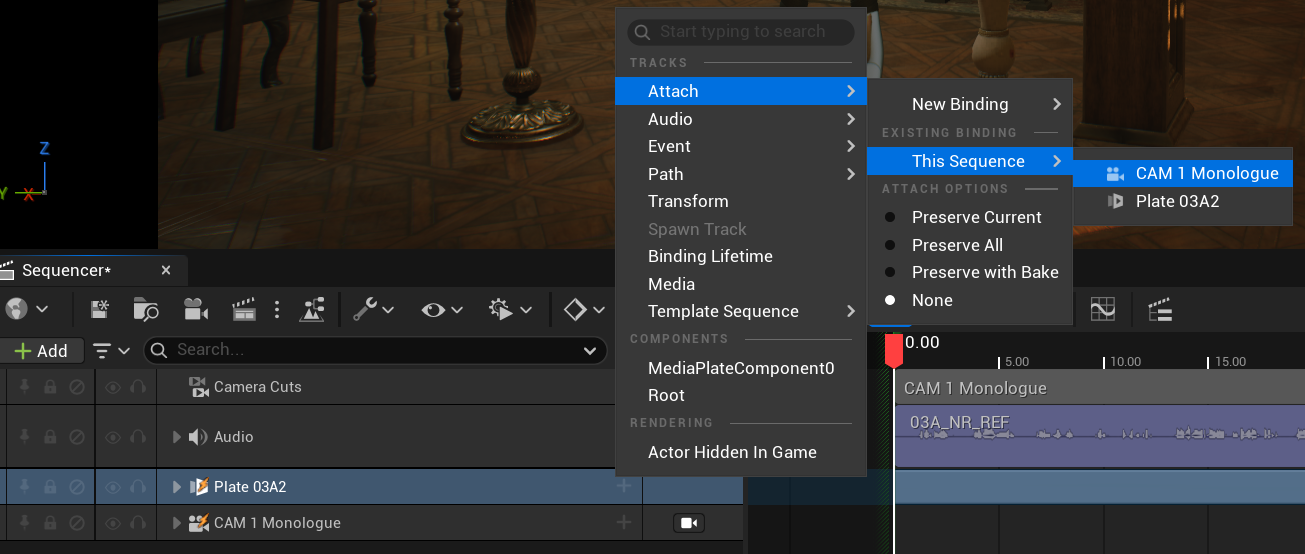
While this has worked, your image plate will have likely disappeared from view. That’s because its world transformation is now seen from the origin point of the camera rather than the world centre. To fix this, set location and rotation to zero in the details panel (using the reset arrow). Now bring the X axis of your image plate forward so the camera can see it. Here I’ve framed up my actor to a medium shot.
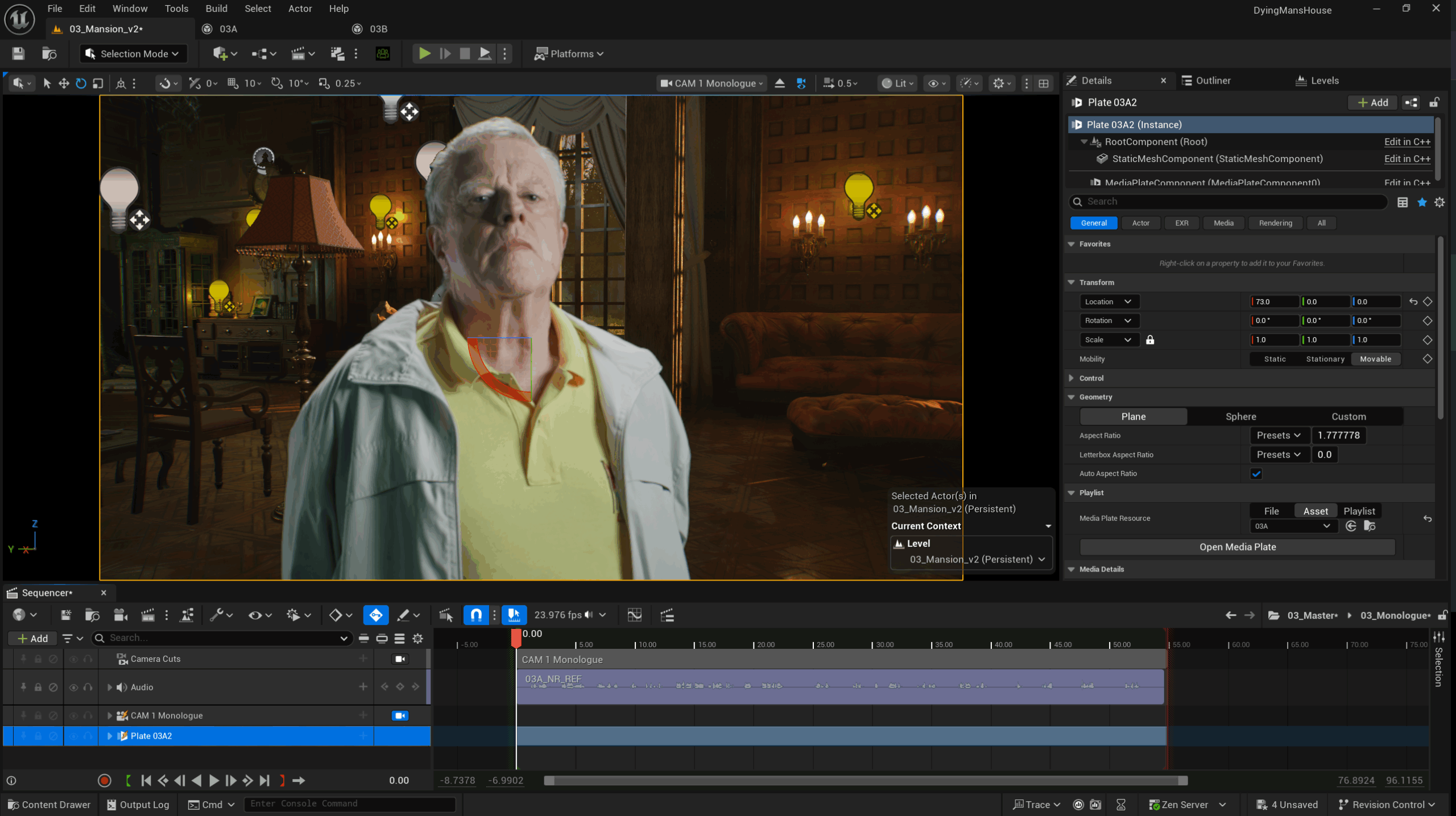
He doesn’t quite fit into the environment yet, but I can pilot my camera now and position it so that I get a better match for scale and position, without having to adjust my plate. I can still animate it independently of the camera if I want of course.
What took me a while to figure out was what needed to be attached to what and in what order. It’s OK if this doesn’t click for you on the first go.
Spawnable Considerations
Image Plates tend to get a little funny when you turn them into spawnables in Sequencer. For one, they lose their media texture, even though they were perfectly working as posessable actors. Once spawnable, we need to tell UE that we want to use T_MediaPlate under Media Texture.
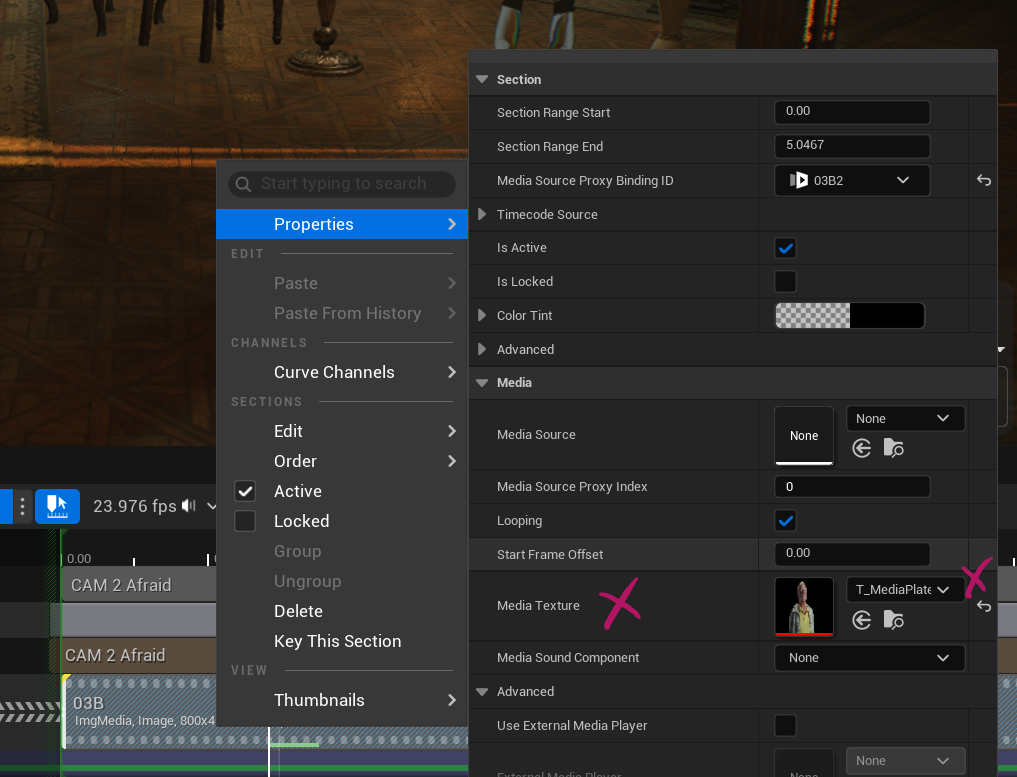
Likewise, the material and any properties on it may need to be changed. For example, with UE 5.4 came a change in how transparency was handled. When you drag a Media Plate into the scene, it defaults to M_MediaPlate_Opaque, which means transparent parts appear black in your scene. Change this to M_MediaPlate_Translucent to see transparency (should probably be the default, but who am I to argue).
I’ve made my own copy of the translucent engine material (found in Engine/Plugins/Media Plate Content) so that I can make adjustments in sequencer. Here’s what it looks like:
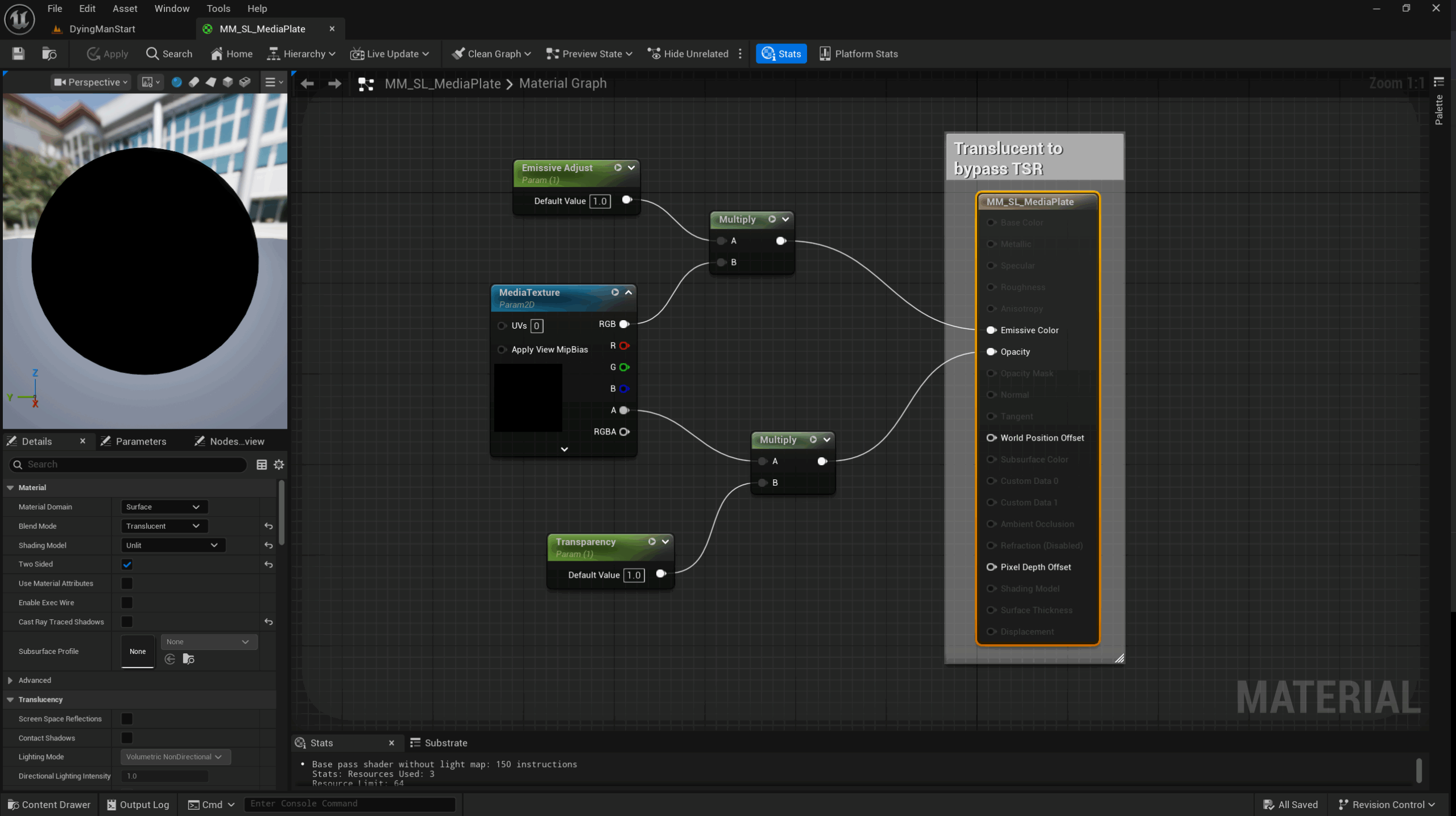
To make this work with a spawnable Media Plate:
- target the Static Mesh Component of the plate
- use the Material Switcher to change to your custom plate material
- then target the material slot (called “lambert” by default) and make adjustments on the material instance
It seems convoluted, but works just fine and makes sense once you’ve done it a few times. Here’s what it looks like in sequencer.
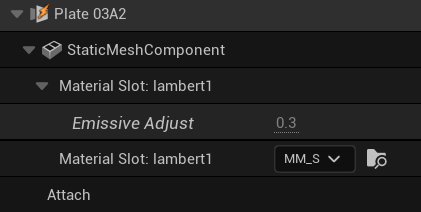
Handling push-ins and pull-outs
Traditionally with camera animations, you may slowly move towards or away from your actors. When parenting your plates to the camera however, moving the camera also moves the plates away with it, so we can’t use that technique here (unless the plates were standing still like a regular 3D object).
The obvious workaround then is to use the camera’s focal length to mimic the effect. Alternatively you can counter-keyframe the plate, or use a reference object, or turn it into a posessable object again once you’ve blocked out your shots. Just be aware that these workarounds make it tricky to change camera positions later.
That’s all I have for now.