It’s rather painful that the 3D industry hasn’t come to a consensus for a “sane set” of viewport controls that’s applicable in every app. Developers seemingly go out of their way to confuse users by inventing their own control scheme, likely laughing behind out backs while we get ever more frustrated when we have to switch between apps. Be that as it may, here’s a quick cheat sheet of how Rokoko Studio wants us to navigate the viewport.
Note that at the time of writing there are THREE versions of Rokoko Studio floating around, all called the same. The one I’m referring to here is the version that looks like this (2.5.1.1, originally released in 2022).

There are also Rokoko Studio Legacy and the Rokoko Studio Preview, both of which have different controls schemes… due to “reasons”.
Viewport Controls
- WASDQE = first person style camera movement (add SHIFT to move faster)
- Right Mouse Drag = camera movement (look control)
- F = toggle Follow Camera (NOT focus on selected)
- F11 = toggle full screen view
- Left SHIFT + Right Drag = rotate around selected
- Left ALT + Right Drag = pan
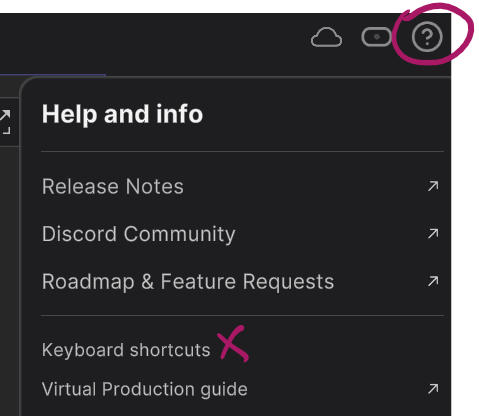
Note that these can be changed to something you may enjoy more (click on the Question Mark icon, then Keyboard Shortcuts – Scene).
Tips to keep your Sanity
When you press F to get a closer look on the character, you’ll notice that dollying is disabled. It sucks. You’ll have to press F again to zoom out, or alternatively press F11 to remove the UI and see the viewport full screen (together with your character). This is especially annoying on smaller laptop screens when you’re capturing out in the field.
You can trim takes before export by dragging the super invisible black little squares around the beginning/end of the barely noticeable grey strip. Believe it or not, those are handles you can drag (not the white vertical lines, the black box around the numbers above it – barely visible in the screenshot).
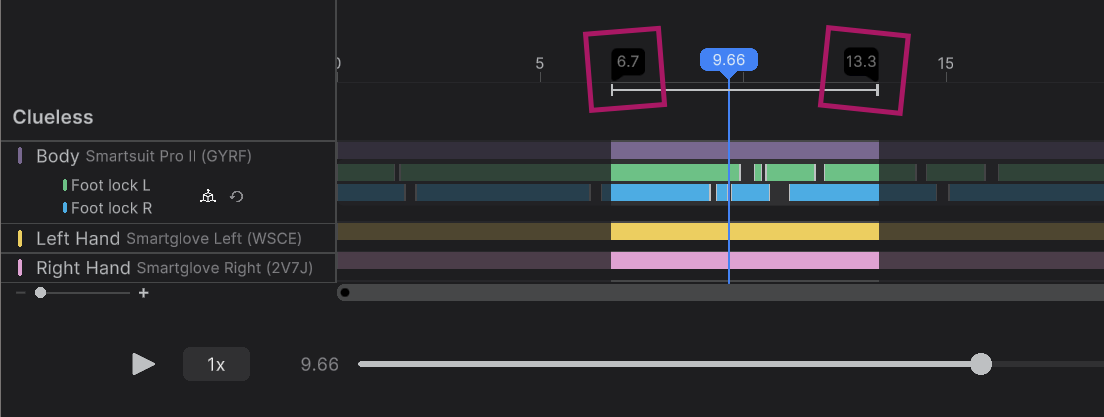
Quality UI designers were at work here, as you can tell. It’s impossible to see these on dark screens. Whatever length is set with these will be exported.