Here’s a little discovery I’ve made this week: DaVinci Resolve’s Edit page has two completely different playhead behaviours, and you can switch between them. I only found out because my Windows machine suddenly behaved differently from my Mac.
On my Mac, the playhead sits fixed in place and the timeline scrolls underneath it as I play or scrub. On Windows, the playhead was merrily travelling across a static timeline instead, the way most NLEs have done it since the dawn of time. I hadn’t knowingly changed anything, and for a moment I thought something was broken. Turns out it’s a setting, and an easy one to toggle by accident.
Where the toggle lives
On the Edit page, click the Timeline View Options dropdown. That’s the small icon at the far left of the toolbar directly above the timeline, the same menu you’d use for track heights, stacked timelines and audio waveform options. In there you’ll find a checkbox called Fixed Playhead. Tick it and the playhead locks in place while the timeline flows past it; untick it and you’re back to the traditional moving playhead.
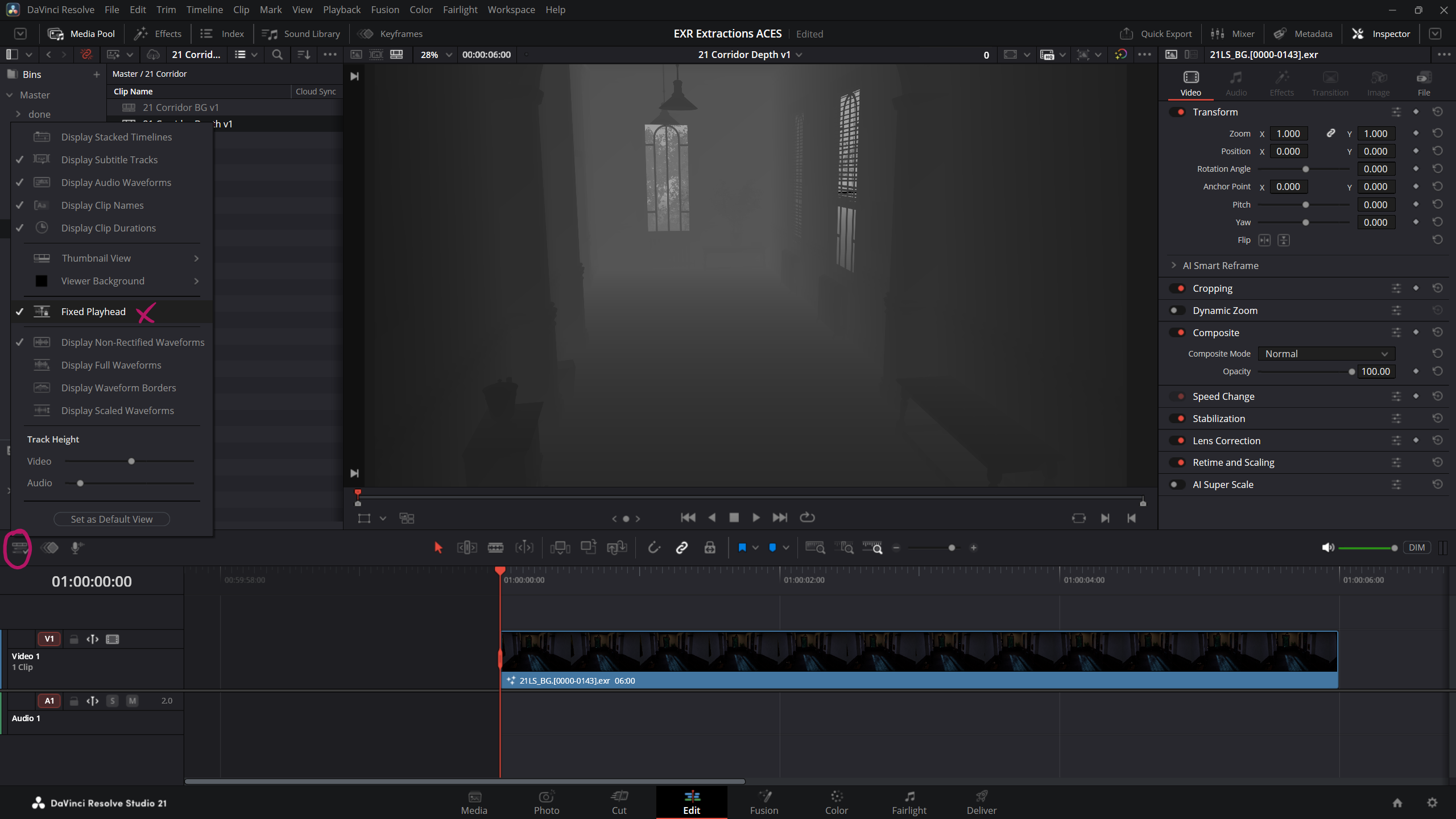
Earlier versions of Resolve (19 and 20) also had a View > Timeline Scrolling submenu with additional Page and Smooth scrolling modes, but that appears to have been tidied away in Resolve 21, leaving just the Fixed Playhead checkbox. Premiere Pro still offers those scrolling options by the way, and defaults to the page-flipping behaviour, which I’ve always found mildly annoying.
Why your machines might disagree
This is a local view preference, not something that’s saved with your project. That’s why my Mac and Windows installs had drifted apart: the setting had been toggled on one machine (probably by me, reaching for track options in that very menu) and the project happily carried on regardless. If your timeline suddenly feels “wrong” on one system, this is worth checking before you blame the project file.
A bit of history: the fixed playhead used to be exclusive to the Cut page and Fairlight. The Edit page only gained it in Resolve 19, so if you’ve been editing in Resolve for years and never noticed the option, that’s because it genuinely wasn’t there for most of them.
Which mode is better?
Honestly, both have their place. The moving playhead gives you a stable frame of reference when you’re trimming and want clips to stay put under your cursor. The fixed playhead shines during playback and review, because the action always happens in the centre of your screen, and it pairs beautifully with the Speed Editor’s search dial: the timeline flows past the playhead while you jog and shuttle, just like on the Cut page. The big reveal for me wasn’t which mode wins, it’s that we get to choose at all.
One small caveat: fixed playhead scrolling doesn’t work while Focus mode is active, so if the option doesn’t seem to take effect, check that first.