In the above video I’ll explain how to use depth maps created in 3D rendering software to infer an accurate Depth of Field effect in Photoshop. This can be useful if you want to avoid re-rendering when you want to change the effect, or if your rendering software isn’t accurate enough (looking at you there, Unreal Engine).
Let’s take a look at the process step by step.
For best results we need to add our depth map to the Alpha Channel of our image. So open the depth map and select everything, then copy. Make a duplicate of your image layer for safety, because this effect is going to be destructive and will be baked in to your layer. At the time of writing, Photoshop (2026/v27) does not support Smart Layers for this effect.
Switch to the Channels tab next.
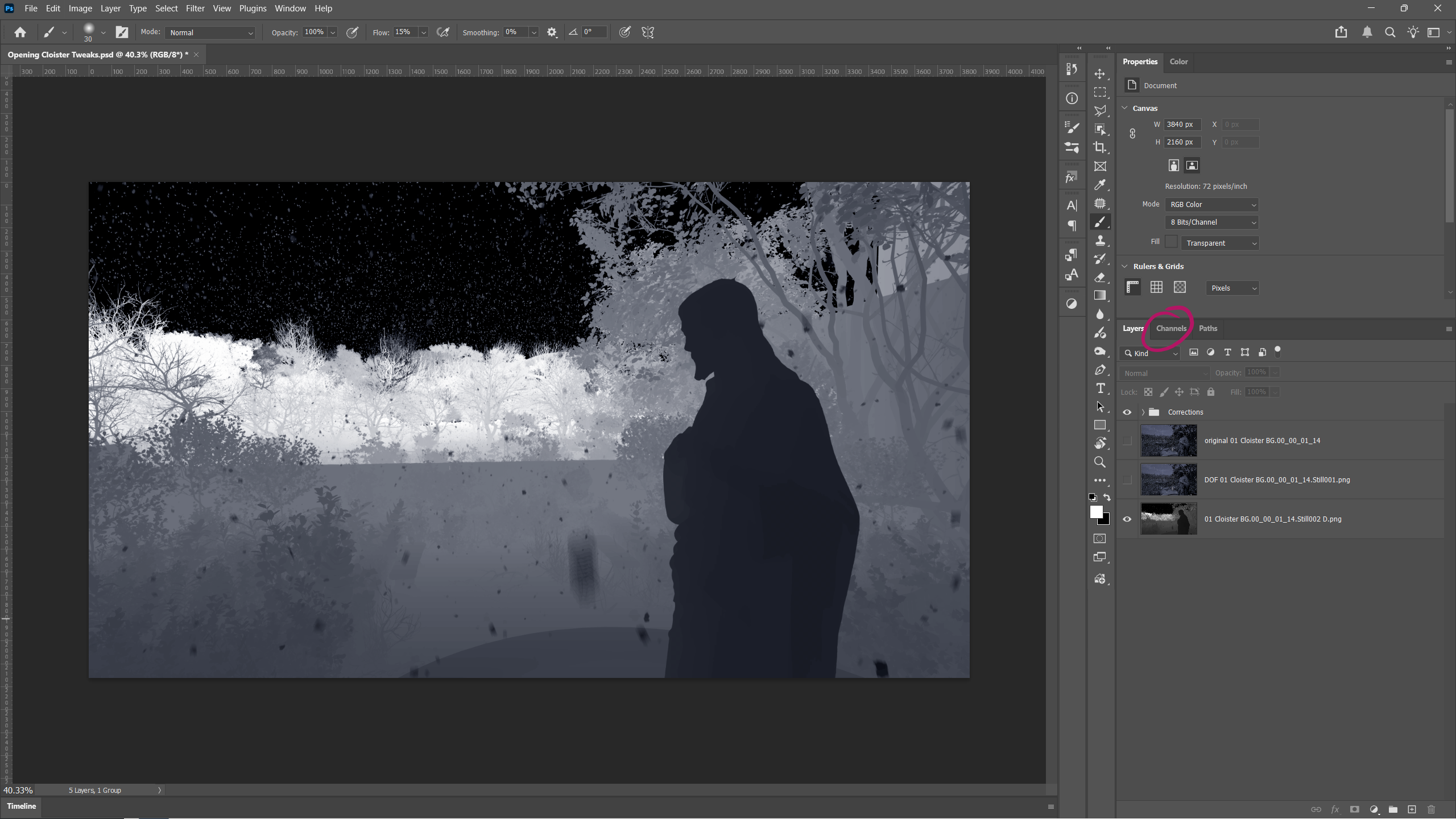
Create a new Alpha Channel if your layer doesn’t have one, or select it if it has. Paste the contents of your Depth Map into the Alpha Channel, then select RGB at the top of the stack.
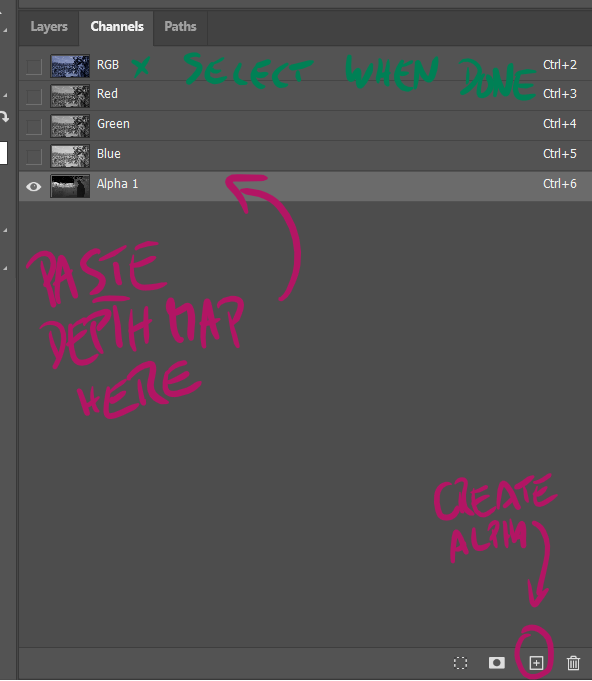
If your image looks like it has a red overlay, it means you still have the Alpha Channel selected, it’ll disappear when you switch to RGB.
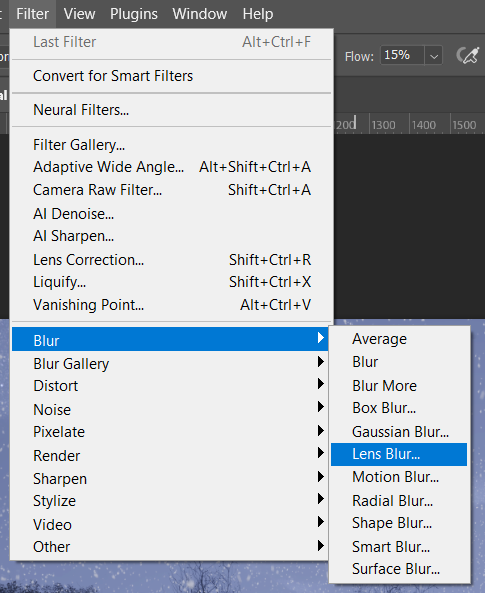
Now comes the fun part: adding the effect. Head over to Filter – Blur – Lens Blur and a new dialogue will pop up.
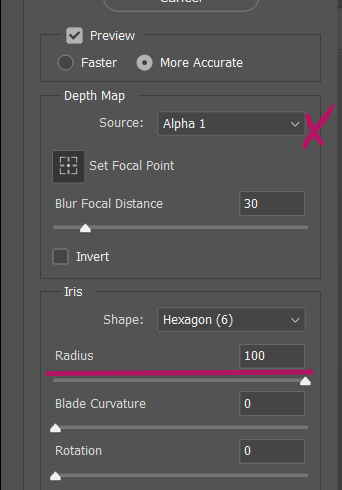
Under Depth Map, pick your Alpha Channel. Photoshop can create this from a mask or even a transparency channel, but I found the results less than desirable. You can pick the exact focus point either numerically with the Blur Focal Distance (i.e. move the slider until it looks good), or you can use the “Set Focal Point” feature. When enabled, you can use the pipette icon to pick the object (i.e. grey value) in the viewport that you want to focus on.
To adjust the strength of the effect, try the Radius value under Iris. There are several other values you can use to adjust the way Depth of Field is created. When you’re happy, click OK and the effect will be baked into the current layer.
Here’s an example with and without the effect applied (never mind the compression artefacts). Notice how Depth of Field directs the viewers attention to what’s important: the statue in the foreground, not the detailed foliage. It also adds a more natural camera look to the image, something that a deep focus render cannot provide.


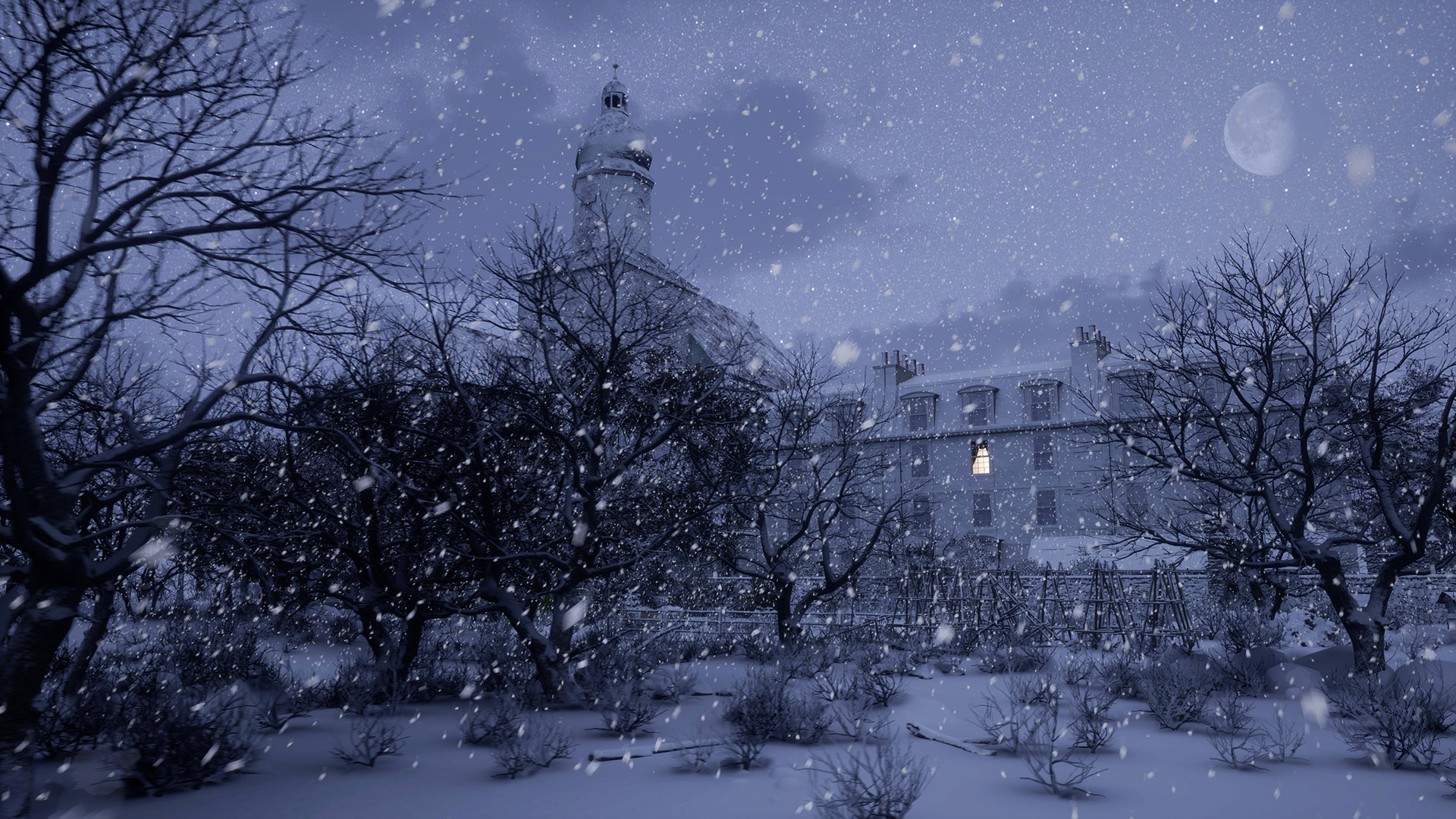
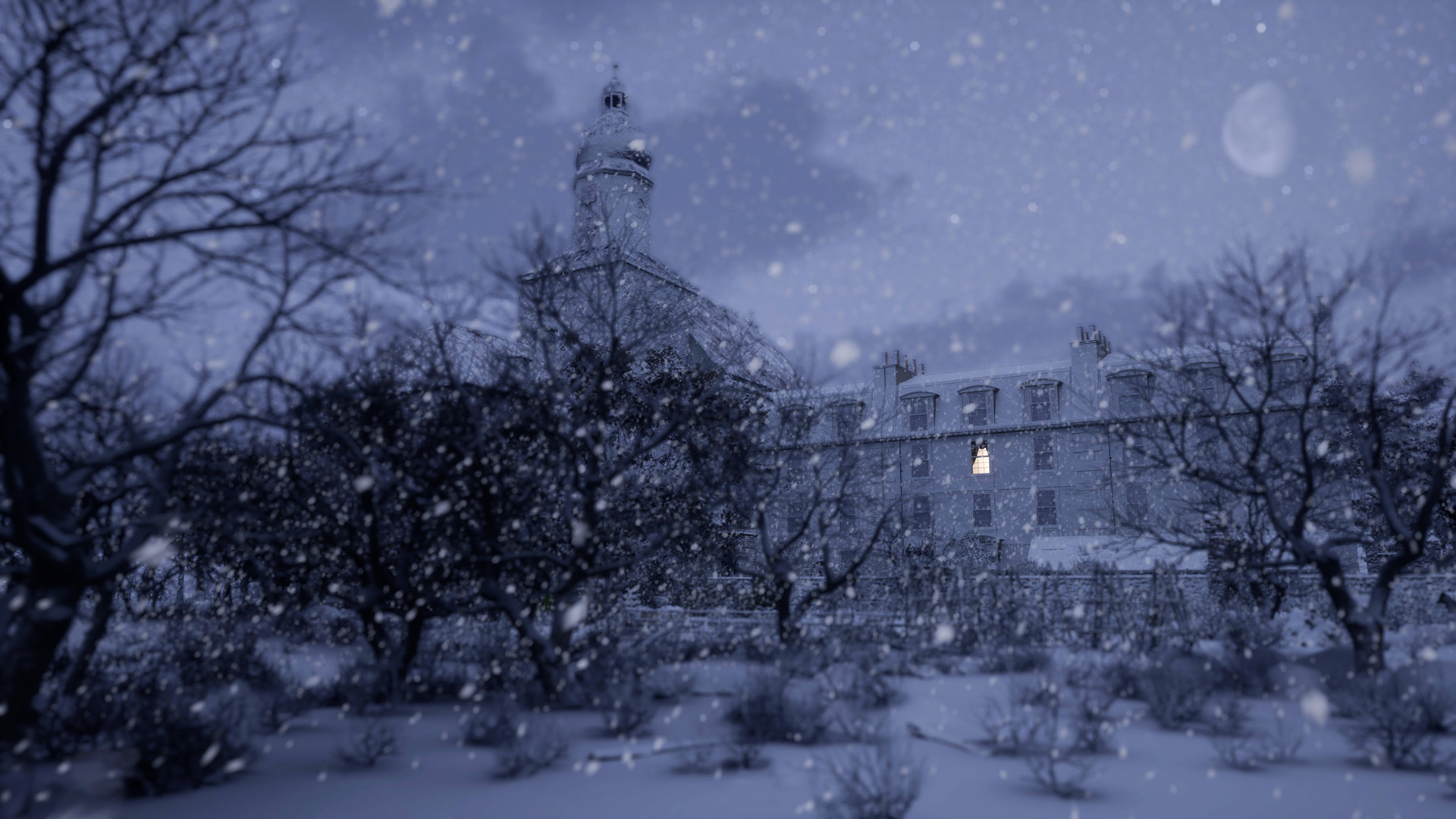
Here’s another example. The object of focus here is the building, and the relatively low-res trees no longer stand out so much. Also notice how much better the snow particles now blend into the image.
I hope this helped! Have fun using Depth Maps.