Every so often I need a quick screenshot of what my timeline is currently showing in DaVinci Resolve, perhaps for a thumbnail or an article like this one. And every time, my brain draws a blank as to where that option lives. I keep scanning the viewer and the timeline for a right-click option, but the one place I never think to look is the File menu. So here it is, written down for future reference.
The quick way: Export Current Frame as Still
Park the playhead on the frame you’d like to grab, then head over to File > Export > Current Frame as Still. A dialogue will open, letting you pick a file name, a destination and a format (PNG, JPG or TIFF). Click Export and you’re done!
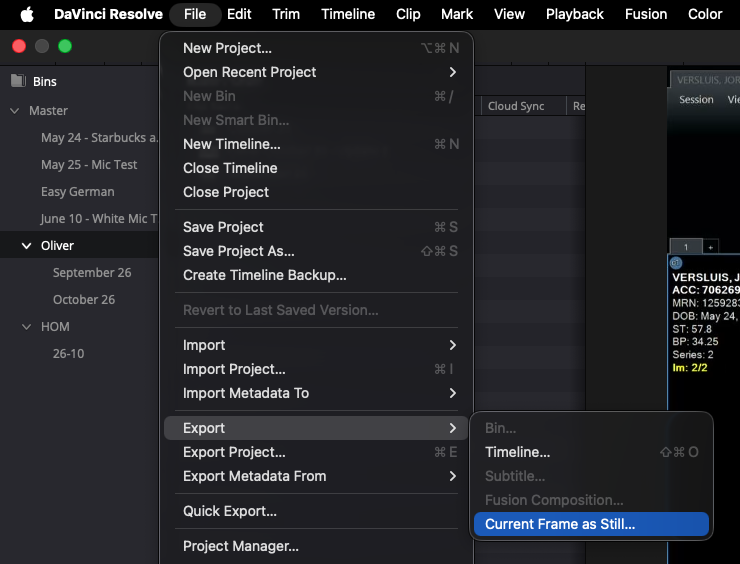
A couple of things worth knowing: the command exports whatever the active viewer is showing, so make sure the timeline viewer has focus before you use it (click into it, or press Q to toggle between source and timeline). The still comes out at your timeline resolution, so a 4K timeline gives you a 4K image. No rendering required, and it works on the Media, Cut and Edit pages alike.
The classic way: Grab Still on the Colour page
Before this handy menu option existed, the traditional route was via the Colour page: right-click the viewer and choose Grab Still. This adds the frame to the Gallery, from where you can right-click it and choose Export to save it as an image file.
It’s a few more clicks, but the Gallery workflow has its uses: stills grabbed this way keep their grade information as a companion file, which is handy for colour matching across clips or projects. For a quick screenshot though, the File menu option is all you need.