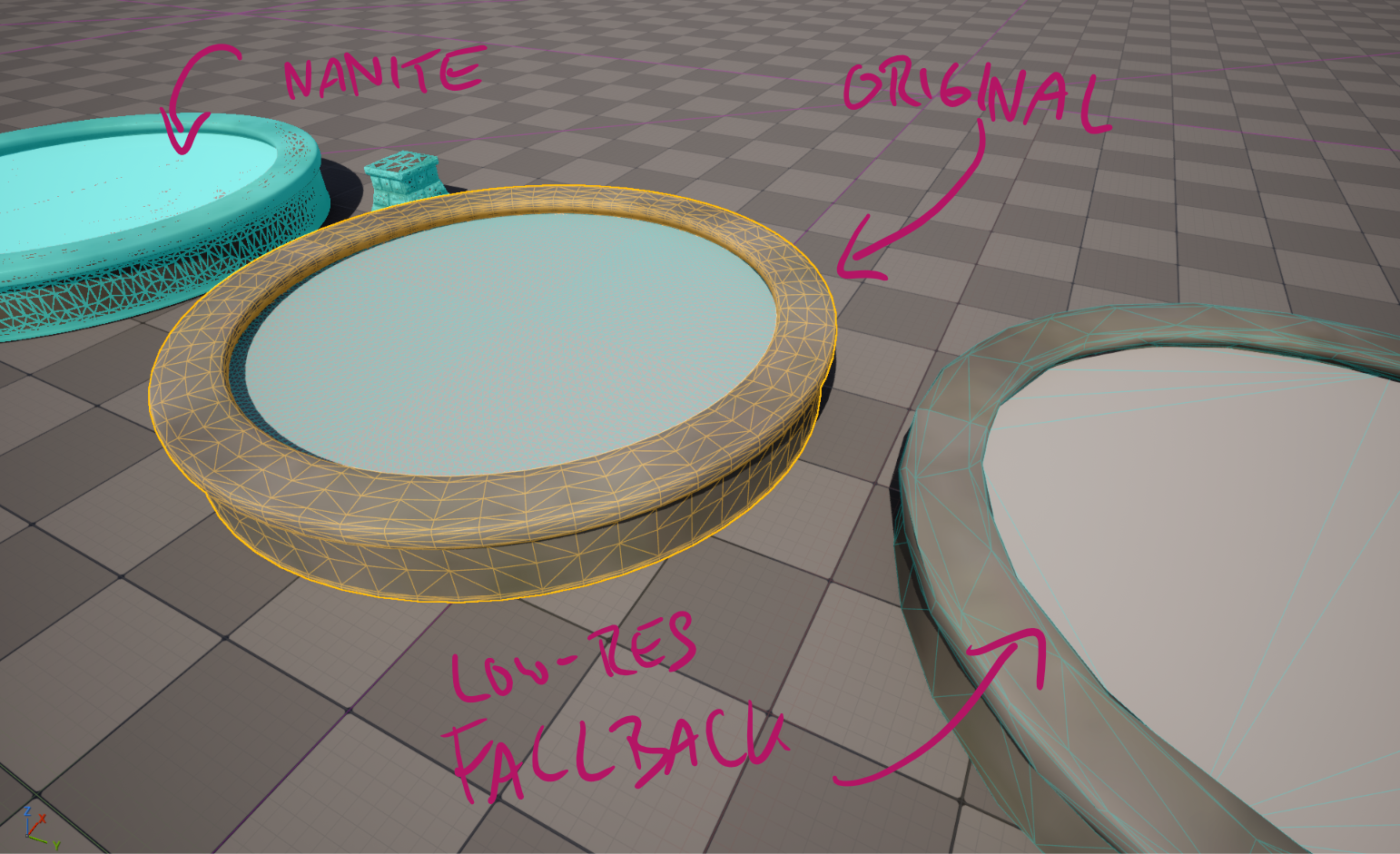
I had a fountain prop with a round basin, and in close-up shots the straight edges of the rim were showing. Normally I’d export the mesh, add a Subdivision Surface modifier in Blender at level 2 or 3, and bring the denser mesh back into Unreal. That still works, and it would have taken five minutes. But Unreal’s Modeling Mode has had a Subdivide tool for a while now, and I was in a learning mood, so I thought I’d try doing the whole thing in engine.
Spoiler: the tool worked perfectly every single time. It just took me the better part of an afternoon to see that it had worked, and the reason turned out to be something I’ve never seen mentioned anywhere. The bigger spoiler is at the end: the straight edges I was trying to fix weren’t in the mesh in the first place. If you’ve ever enabled Nanite on a mesh and wondered why it looks exactly the same as before, read on.
Step 1: PolyGroups first, then Subdivide
The Subdivide tool lives in Modeling Mode under the Model category (it’s called SubD on the button). It applies real Catmull-Clark subdivision and bakes the result straight into the mesh, unlike Blender where the modifier stays live. The catch is that Catmull-Clark needs polygons to work with, and a static mesh is nothing but triangles. Run it on raw triangles and you’ll get a lumpy mess.
The fix is to generate PolyGroups first: Attribs → PolyGroups, and set the Conversion Mode to Find Quads. This reconstructs the original quads from pairs of coplanar triangles, and on my fountain it did a lovely job on the rim and the sides. Don’t be tempted by Face Normal Deviation here; it groups by flatness, so the whole flat top of the basin became one giant polygon, which Catmull-Clark would then fan-subdivide from the centre into hundreds of long thin triangles.
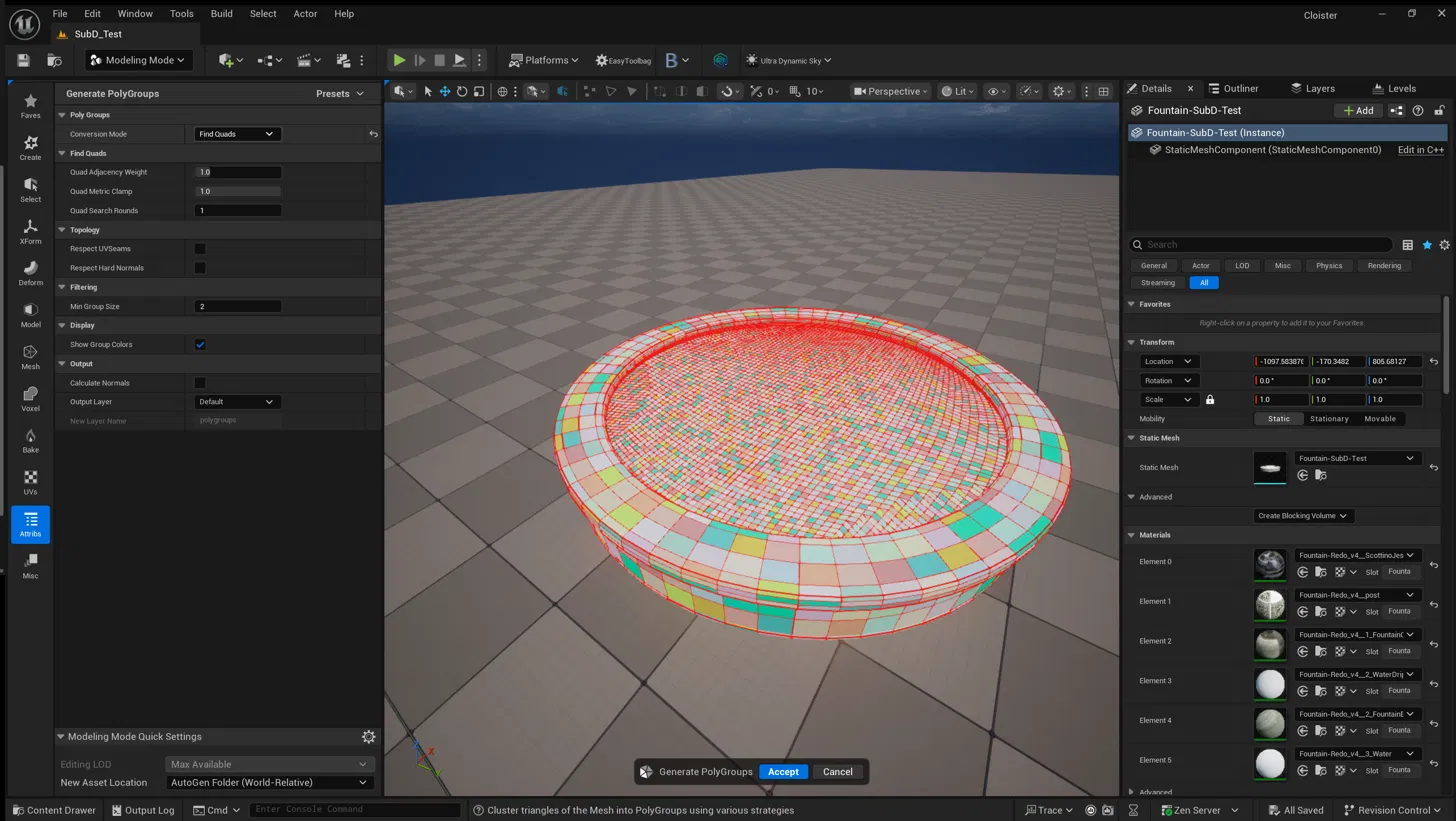
With the groups in place, Model → SubD, scheme Catmull-Clark, and pick a level. I went for 3, which was a mistake I’ll come back to. The preview in the viewport showed a gloriously dense red mesh, the CPU did busy things for a while, and I hit Accept.
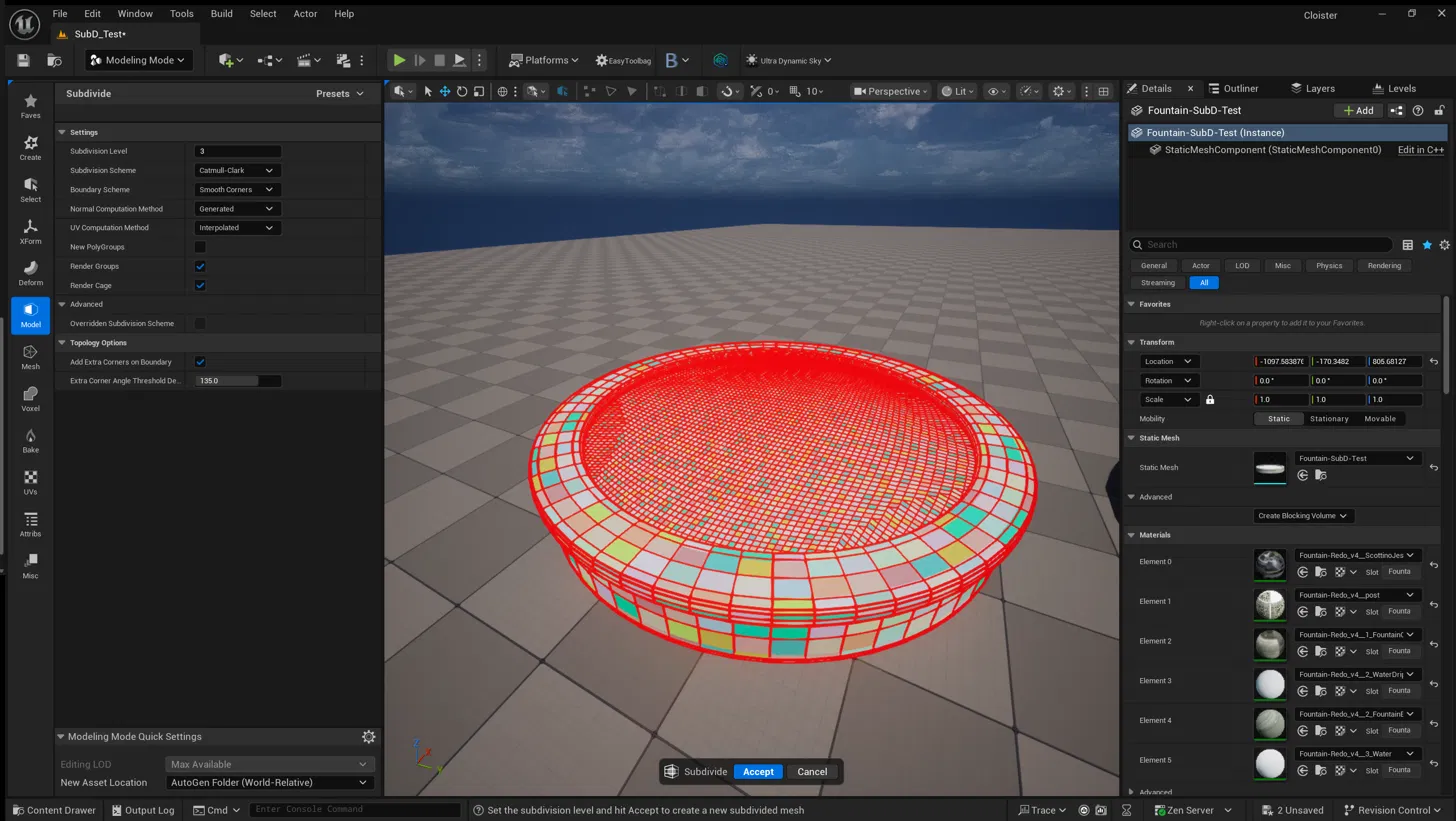
Step 2: nothing happens (apparently)
Back in the viewport, the fountain looked exactly as it did before. Same straight edges, same polygon count in wireframe view. I opened the asset and it looked the same there too. I tried it again. Same result. I disabled Nanite, re-enabled it, forced LOD 0, and got nowhere. At this point every artist instinct says “the tool is broken”, and I was ready to add it to my long list of Modeling Mode features that look good in a demo and fall over on a real asset.
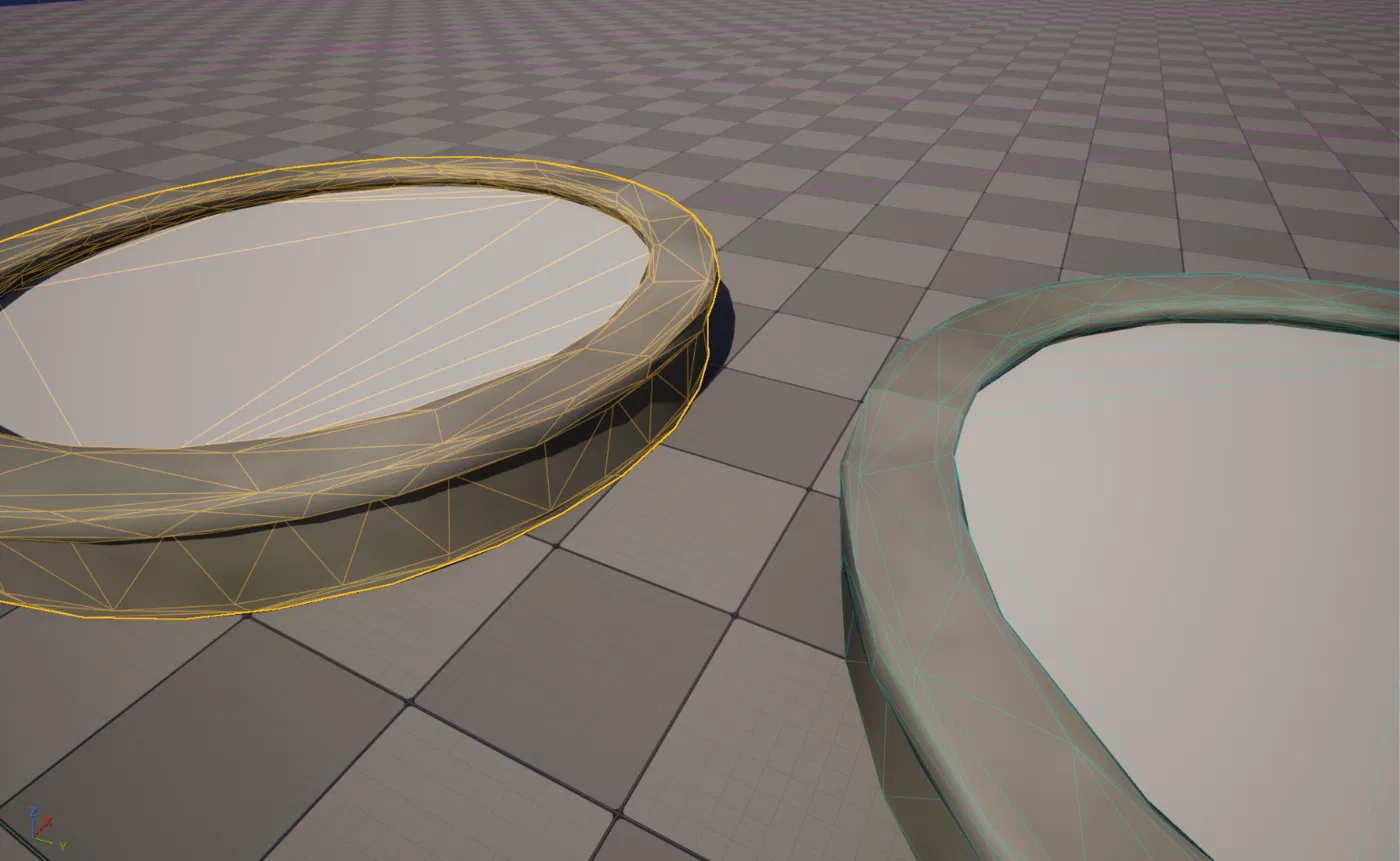
Then I looked at the stats panel in the Static Mesh editor properly, and the numbers told a different story.
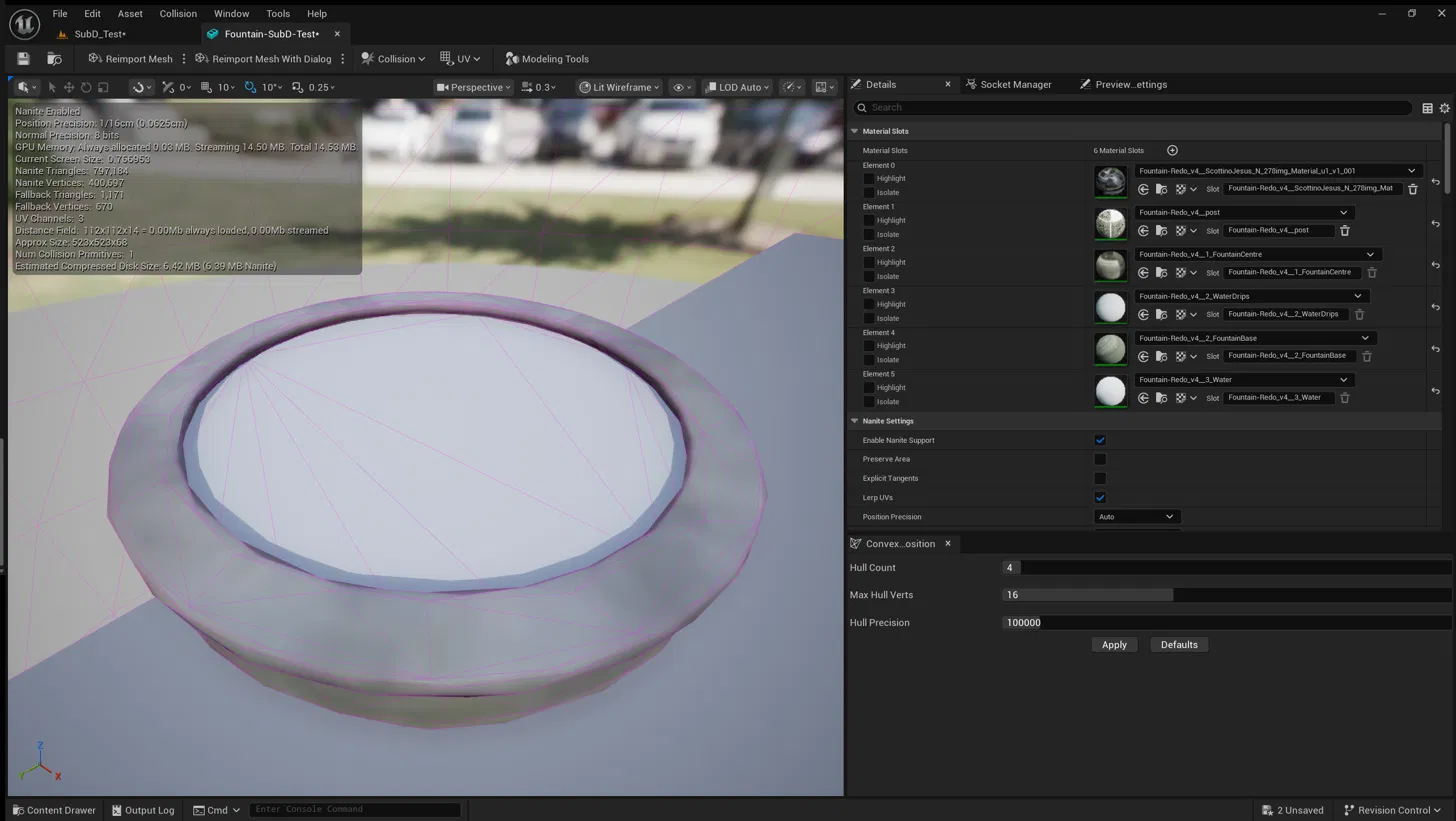
Nanite Triangles: 797,184. Fallback Triangles: 1,171. My original mesh had around 12,000 triangles. Multiply that by 64 and you get the level-3 subdivision I’d asked for. The data was there. It was sitting inside the Nanite representation of the mesh, and what I’d been looking at the whole time was the fallback: an auto-decimated proxy that was actually lower resolution than my original.
Three meshes in a trench coat
Here’s the thing nobody tells you: a Nanite-enabled static mesh is really three meshes wearing the same name. There’s the source geometry you edit, the Nanite data built from it, and the fallback mesh that gets drawn whenever Nanite isn’t used, which is decimated to a fraction of the original by default. The editor swaps between them without any indicator of which one you’re looking at. It’s that mysterious “auto LOD” that gets generated so that platforms that don’t have Nanite can still show a mesh without us providing custom LODs.
To see what gets drawn in the viewport, the Nanite Visualization modes under the View Mode menu are the honest ones: Overview or Triangles show you what Nanite is actually rendering. And when I switched to that Nanite Overview, the real problem revealed itself: Every panel was black for my fountain. The Megascans prop sitting next to it showed up fine. Nanite was enabled on the asset, Nanite was enabled in the project, and yet this one mesh was being rendered as a plain old static mesh.
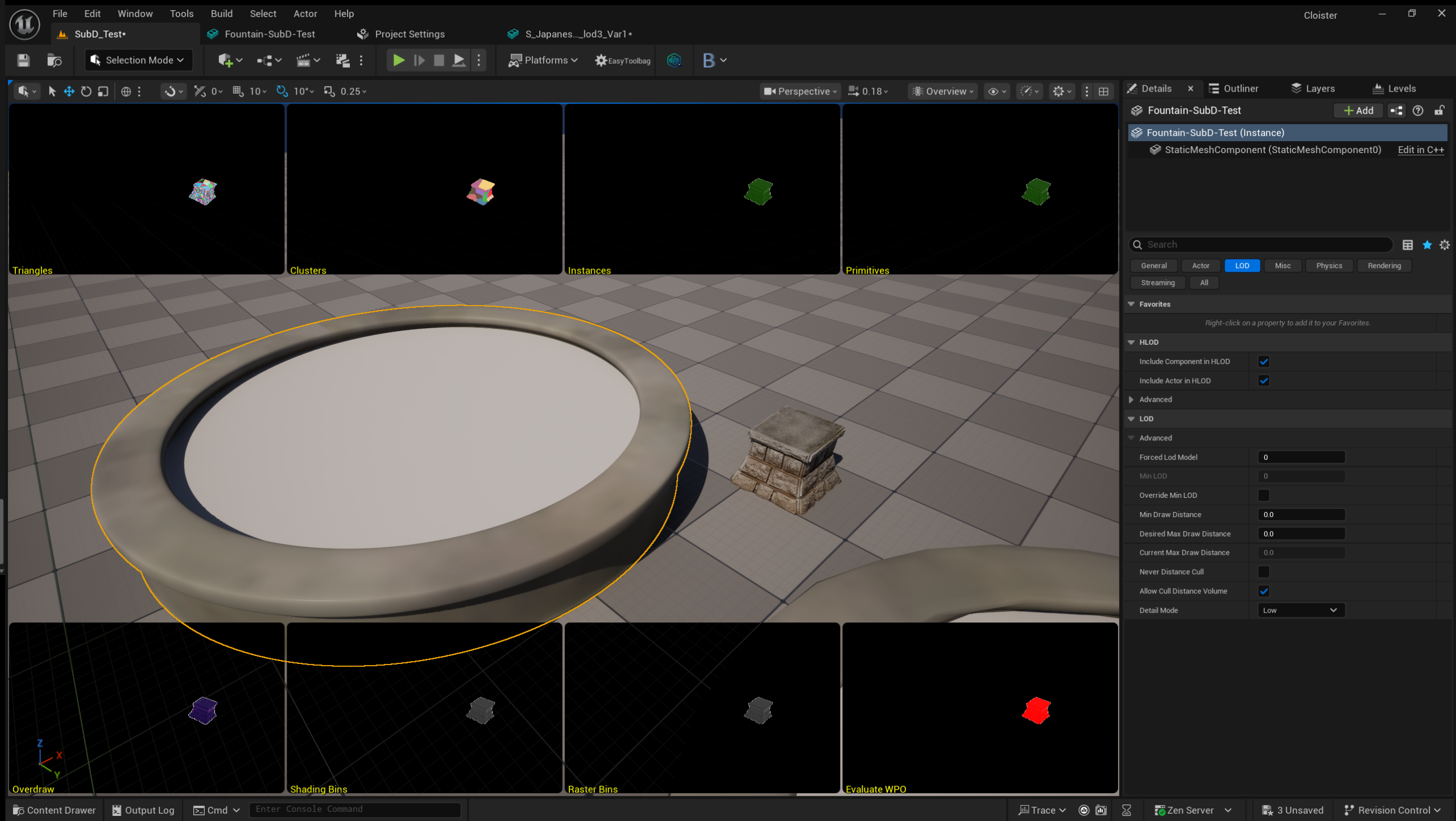
That little prop is a Megascans asset with Nanite, which was a nice test to see that it was double-definitely enabled. So what’s going on here?
The culprit: a translucent material
Nanite doesn’t support translucent blend modes. I honestly had no idea!
What happens when a Nanite mesh has an unsupported material in just one of its slots: the entire mesh silently drops to the fallback path. No warning, no log entry, no little icon in the Static Mesh editor. The checkbox says Nanite is on, and the renderer quietly ignores it. Thanks EPIC!
My fountain had six material slots, and two of them were water. Water shaders are translucent. The basin, the rim, the stone base, all perfectly Nanite-compatible, all held hostage by the water surface. I swapped the water slot for a basic opaque material and the fountain popped into the Nanite Overview immediately, every subdivided triangle present and correct. Crazy, huh?
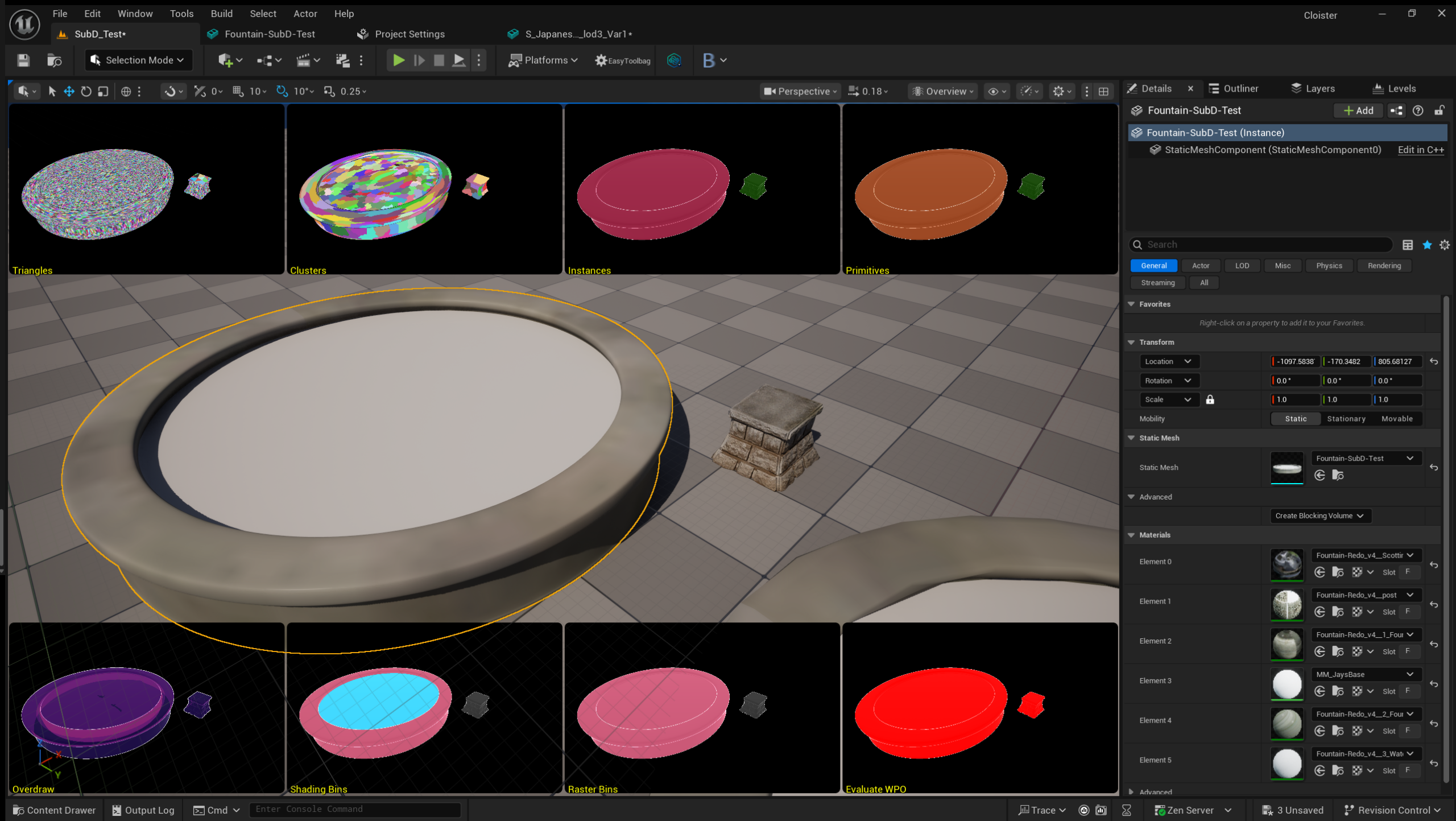
Out of all the warnings Unreal Engine likes to throw at you, “this mesh cannot be rendered with Nanite because slot 3 is translucent” would be a genuinely useful one. Bu that one doesn’t exist. Given how many store-bought assets arrive with a glass pane or a water plane sharing a mesh with the rest of the prop, I suspect a lot of people have Nanite meshes in their projects that aren’t actually rendering through Nanite, and they’d never know.
How the translucent material got there: Daz to Unreal
I never chose a translucent material for this fountain. The Daz to Unreal bridge did, years ago, and it did so for perfectly sensible reasons. The bridge ships its own parent materials (opaque, masked and translucent, each with an enormous set of properties) and instances them twice: once for the asset as a whole, then once again for every material zone on that asset. An instance of an instance. Which parent it picks is its own decision, based on what it thinks suits the Daz surface: anything with transparency gets masked or translucent, everything else gets opaque.
For matching the look of the original Daz render, that’s exactly right. For Nanite, it’s a trap, because one translucent water zone on an otherwise solid prop is enough to switch the whole prop over to the fallback mesh.
Masked is fine, incidentally. Nanite has supported masked materials since 5.1. It’s specifically the translucent parent that does it. If you’ve brought props over from Daz Studio and turned Nanite on afterwards, I’d assume at least one of them is quietly rendering its fallback right now. The Nanite Overview view mode will tell you which ones in about five seconds.
The twist: the straight edges were never in the mesh
Having found the culprit, I did the obvious thing and split the water surface off into its own mesh (XForm → Split, of all places, with Split Method set to By Mesh Topology). The basin came out as a fresh asset with one opaque material and, because new Modeling Mode assets don’t get Nanite by default, no fallback. And before I’d subdivided anything at all, the rim looked fine. Smooth, round, nothing like the faceted thing I’d been staring at.
That’s when it sank in. The straight edges I’d set out to fix were never the mesh! They were the 1,171-triangle fallback. The water material had been translucent since the day the bridge created it, so Nanite had never once rendered this basin, and for three years I’d been looking at an auto-decimated proxy of a perfectly good 12,000-triangle prop. I came into this wanting to add geometry. What I actually needed was to stop Unreal Engine from hiding the geometry I already had!
So the moral is bigger than “translucent materials disable Nanite”. It’s that the artefact you’re trying to fix may not be in your asset at all. Before you reach for a subdivision tool, a DCC round trip, or a higher-poly version from the store, check whether you’re even looking at the real mesh.
What I’d do differently
Knowing all this, the in-engine workflow is actually fine. It just needs a bit of preparation:
- Check the Nanite Overview first. If your prop is missing from it while its neighbours show up, you have a material problem, not a geometry problem, and no amount of subdivision will help.
- Split off anything translucent. Modeling Mode → XForm → Split (yes, XForm), with the method set to By Material ID or By Mesh Topology. The water becomes its own mesh with its own translucent material, and the stone basin keeps only opaque slots, so Nanite is happy. The water didn’t need subdividing anyway.
- Then decide whether you still need SubD at all. Look at the split piece in plain Lit view at your close-up distance. If it’s smooth enough, you’re done.
- If you do subdivide, use level 2, not 3. Level 2 is already perfectly smooth in close-up and gives you a quarter of the triangles. Level 3 on my fountain crashed the editor once and produced an 800k-triangle basin the other time, which is excessive even for Nanite.
- Judge the result in Lit view or the Nanite Visualization modes, never in a wireframe mode.
- If you need the dense mesh without Nanite (for a non-Nanite platform, or just to see it in wireframe), set Fallback Target to Percent Triangles and Fallback Percent to 100 in the Nanite Settings. Note that the “Keep Triangle Percent” field just above it is a different thing entirely; it controls how much the Nanite data is trimmed, not the fallback. I set that one to 100 first and wondered why nothing changed. Once your mesh is actually rendering through Nanite, leave the fallback on Auto; a decimated proxy is the correct, cheap choice for the rare cases that use it.
- The Subdivide tool edits the asset in place. Despite the “New Asset Location” setting at the bottom of the Modeling panel, no new asset is created. Duplicate your prop before you start, or you’ll be subdividing the original.
Would I use this instead of the Blender round trip? For a quick fix on a hero prop, yes, now that I know where the traps are. The subdivision itself is solid and the Find Quads step does a better job of recovering topology than I expected.
The problem was never the tool. It was that Unreal has three different meshes per asset and a view mode system that shows you whichever one it feels like, with nothing to tell you which. Once you know that, the whole thing makes sense. Before you know it, it looks like the software has an “if is Jay” clause. 😄