Sometimes I render out an EXR from Unreal Engine, without adding a particular Colour Profile to it. When I import those renders into Resolve, they look extremely dark. That’s because it assumes they’re colour managed, but they’re not. Unreal Engine exports them as linear, so we need to tell Resolve about that.
Here’s how we do it. I’m using Resolve 21.2 on Windows here.
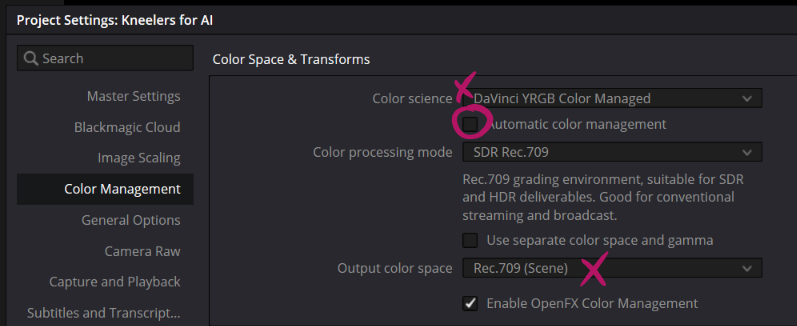
First, tell Resolve NOT to use automatic colour management. We can do that under File – Project Settings. Disable the tick box and set the output colour space to Rec 709.
Next we need to tell Resolve that the clips we’re using are indeed linear. We can do that for one or multiple imported clips with a right-click, then under Input Color Space, choose Linear (and Linear again because… every option in this menu has sub-options, even if it only has a single one).
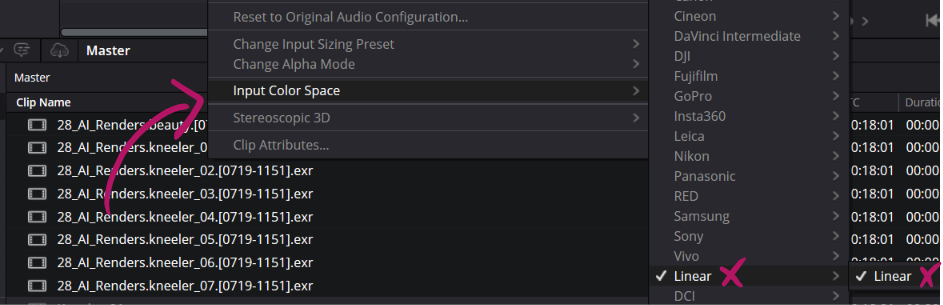
This trick also works if your source clips don’t come from Unreal Engine: as long as you know what source colour space was used, tell Resolve and your footage will magically look great when you use it.
And that’s it! Now our EXRs look as good in Resolve as they do in Premiere.