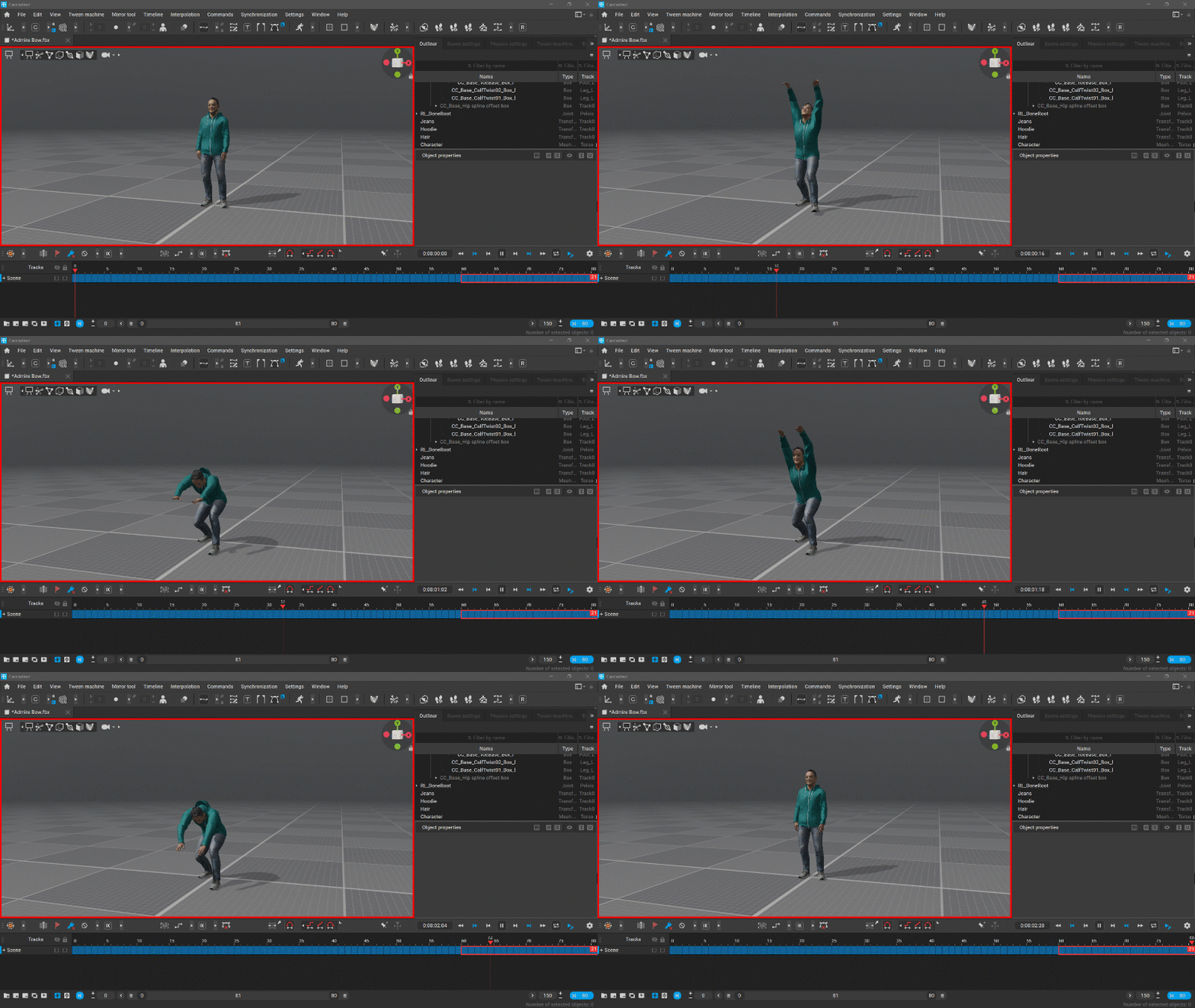
Cascadeur can create animation loops, but it’s far from intuitive. It’s also a destructive process, so save your projects before applying them. Here’s how to loop an animation using Interval Edit Mode.
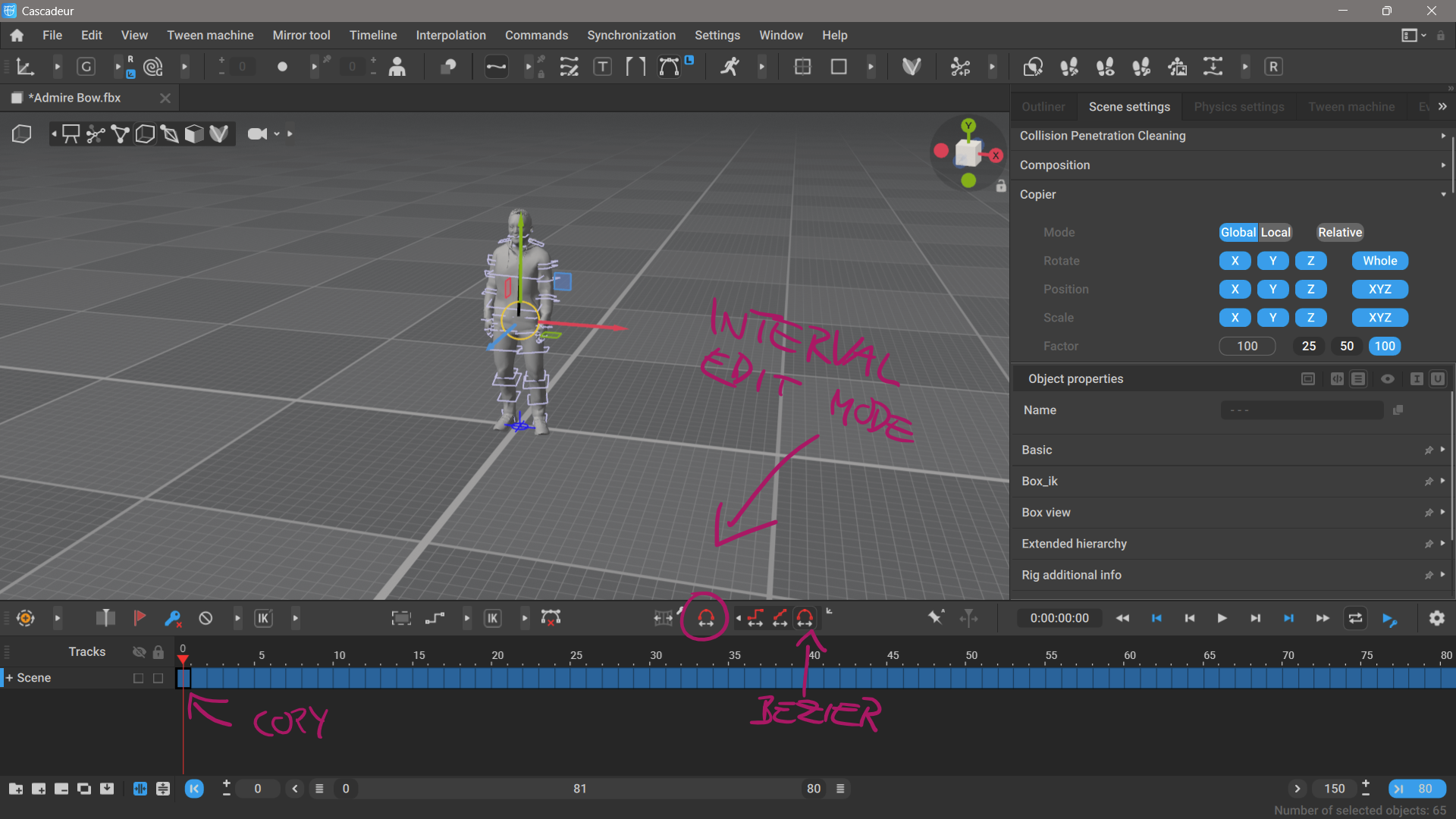
Select the first keyframe on the timeline, let’s assume this needs to become the seamless last frame of our animation. Switch into Point or Box Controller Mode, then select all controllers (I’m using the Box Controller). Switch into Interval Edit Mode (red border appears), pick the Bezier curve, and copy the keyframe (CTRL+C).
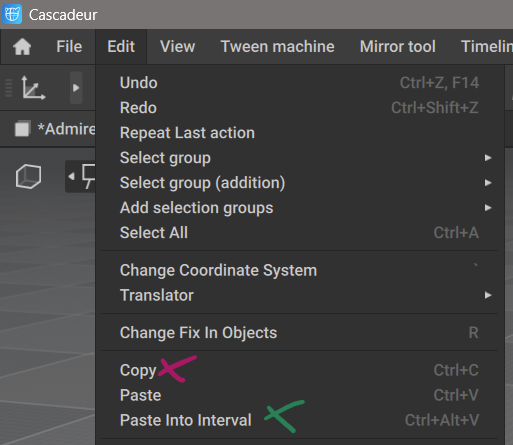
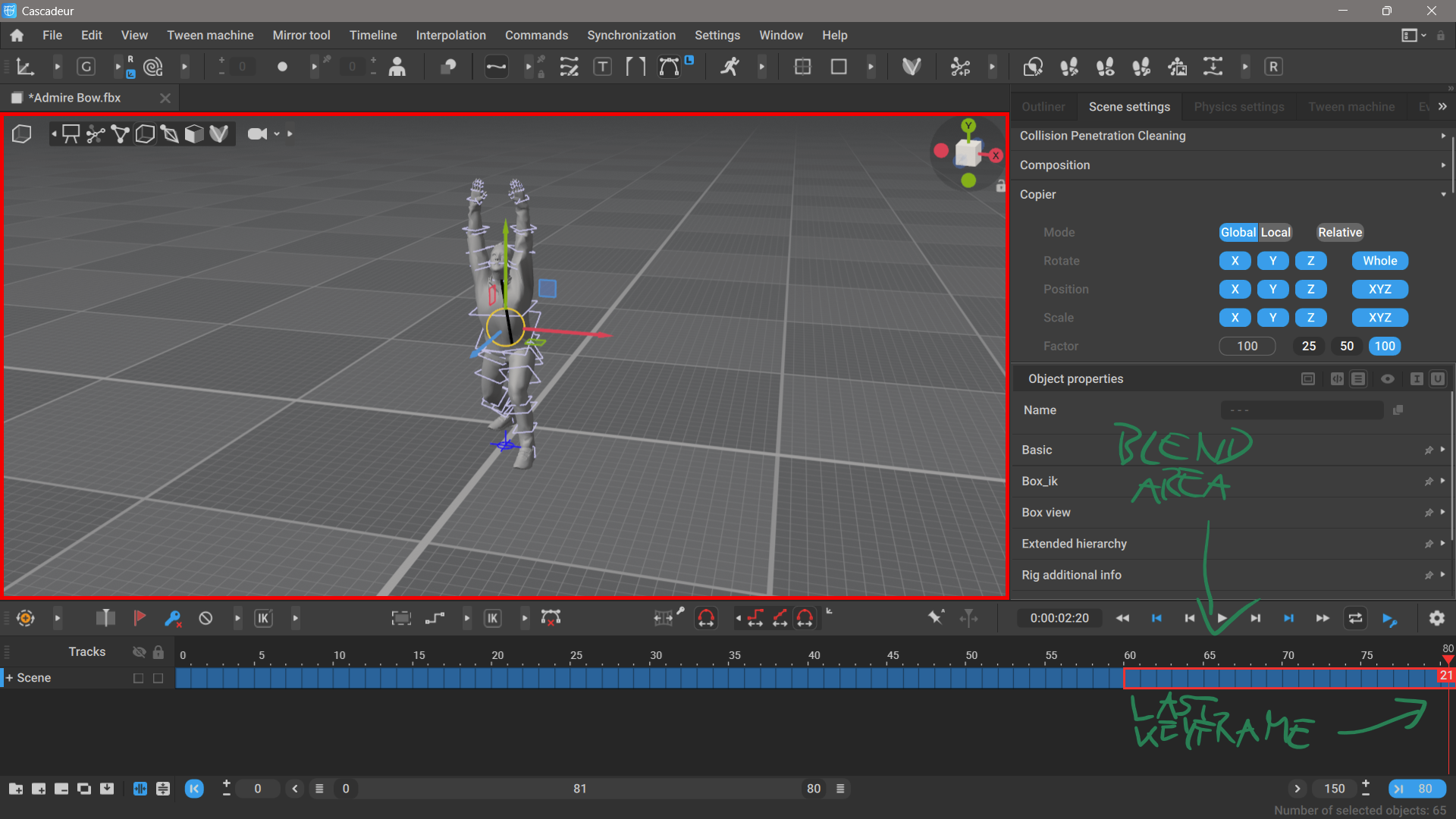
With Interval Edit Mode enabled, select a section at the end of your animation you’d like to use as “blend out” area. Mine needs about 20 frames to look good, but your mileage may vary. Once marked, park the playhead on the last frame of the animation. Now choose Edit – Paste into Interval (CTRL+ALT+V) and your copied frame will be gradually added to each keyframe, adding more influence until Cascadeur reaches the playhead.
If all went well, you should see a looped animation that starts and ends with the same frame, blended out beautifully.