Last September I wrote about objects that show up in the viewport but refuse to render in Movie Render Queue. The culprit was a LOD0 Screen Size of zero on the affected static meshes, and the fix was to either set that value to 1 on each mesh, or to add a Game Overrides section to the MRQ preset with “Use LOD Zero” and “Disable HLODs” switched off.
This week it bit me again, on our Heart of Mercy kitchen set. Half the room was missing from the render: the hearth, the shelves, the hanging pots, even the walls, with the night sky and a bank of exterior fog pouring in where the plaster should have been. The table in the middle rendered fine, because that’s the very mesh I had fixed last year. Everything else on the set never got the treatment.
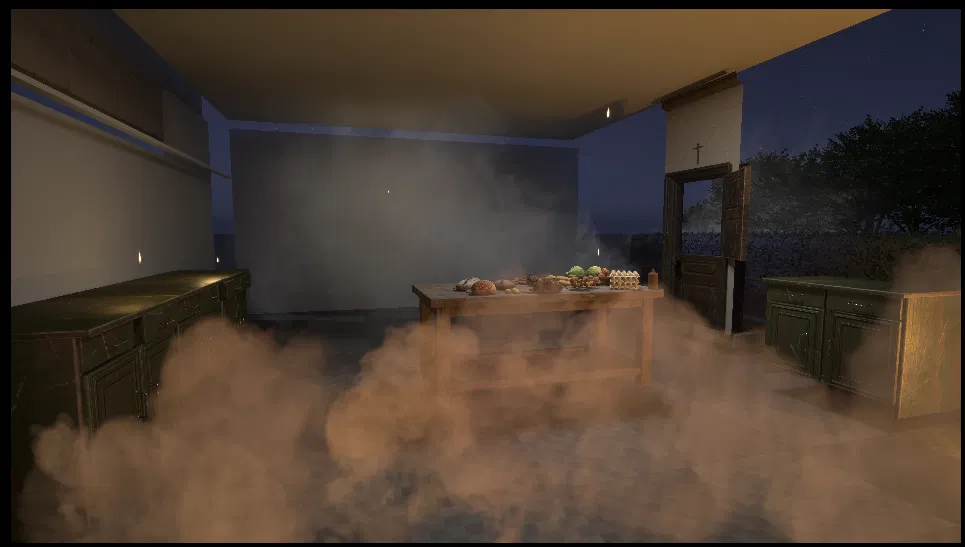
[MRQ render with half the kitchen missing]
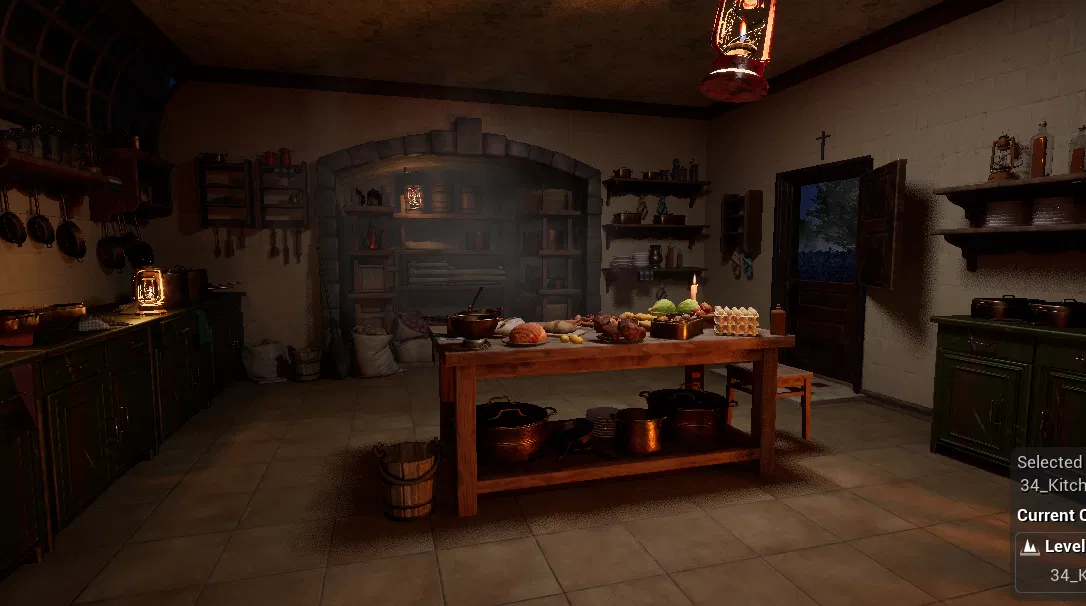
[the same shot in the viewport]
The embarrassing part: I had started this project with “known good” render settings copied from a recent project, and those didn’t include the Game Overrides fix. Known good is only as good as the last problem you tuned it against.
I’ve since added a section on why this happens to the original article, so head over there if you like a mechanism with your fix. This post is about the other half of the problem: fixing dozens of meshes at once.
The Property Matrix can’t do it, but Python can
LOD Screen Size isn’t exposed to the Property Matrix, so there’s no way to multi-select a folder of meshes and change the value in one go. What Unreal does expose is a Python API for the Static Mesh Editor, and that gives us everything we need: read the LOD screen sizes of a mesh, change them, save the asset.
The Python Editor Script Plugin is enabled by default in Unreal Engine 5. If you’ve never used it, the quickest way to run a script is the Output Log window: change the little dropdown at the bottom left from Cmd to Python, paste your script, and hit enter. For anything longer than a one-liner, save the script as a .py file and use Tools – Execute Python Script instead.
The script
Here’s the script I’m using. It walks a Content Browser folder recursively, finds every static mesh whose LOD0 screen size is zero, and sets it to 1.0. It runs in dry-run mode by default, so it only reports what it would change until you flip the switch.
import unreal

# Folder to scan, recursively. Use the Content Browser path, starting with /Game
CONTENT_PATH = "/Game/Sets/Kitchen"

# What to set LOD0 to. Anything above zero works; 1.0 is a sensible value
NEW_SCREEN_SIZE = 1.0

# True = report only. Set to False to actually change and save the meshes
DRY_RUN = True

registry = unreal.AssetRegistryHelpers.get_asset_registry()
sm_subsystem = unreal.get_editor_subsystem(unreal.StaticMeshEditorSubsystem)

assets = registry.get_assets_by_path(CONTENT_PATH, recursive=True)

checked = 0
found = 0

for asset_data in assets:
    if asset_data.asset_class_path.asset_name != "StaticMesh":
        continue

    mesh = asset_data.get_asset()
    checked += 1

    sizes = sm_subsystem.get_lod_screen_sizes(mesh)
    if not sizes or sizes[0] > 0.0:
        continue

    found += 1
    unreal.log_warning(f"{mesh.get_path_name()}: LOD0 screen size is {sizes[0]}")

    if DRY_RUN:
        continue

    sizes[0] = NEW_SCREEN_SIZE
    sm_subsystem.set_lod_screen_sizes(mesh, sizes)
    unreal.EditorAssetLibrary.save_loaded_asset(mesh)
    unreal.log(f"  -> set to {NEW_SCREEN_SIZE} and saved")

verb = "would fix" if DRY_RUN else "fixed"
unreal.log(f"Checked {checked} static meshes, {verb} {found}")
A few notes on what’s going on in there:
- The Asset Registry gives us every asset under the path without loading them. We only load the ones that are actually static meshes (
asset_data.get_asset()), which keeps things quick on a big folder. get_lod_screen_sizesreturns one value per LOD. We only care about index 0.set_lod_screen_sizestakes the whole array back, so we change index 0 and hand the rest through untouched. It also switches off “Auto Compute LOD Screen Size” on the mesh, which is what leaves the field editable in the Static Mesh Editor.- Nanite meshes don’t use the LOD chain for rendering, so they’re not affected by this bug in the first place. The script won’t hurt them, but you’ll typically only see non-Nanite meshes reported.
Running it
Run it once with DRY_RUN = True and check the Output Log. You’ll get a yellow warning line for every offending mesh and a summary at the end.
If the list looks right, set DRY_RUN = False and run it again. The meshes are saved as they’re changed, so there’s nothing left to do afterwards except re-render.
A word of caution: this modifies and saves assets on disk. I ran it on a duplicate of the project first, and I’d suggest a commit (or at least a backup) before running it on anything you care about. If the whole set came from one Fab pack, scanning that pack’s folder is the natural scope.
Which fix should you use?
Both the per-mesh fix and the MRQ Game Overrides fix work, and they attack the same problem from opposite ends. The Game Overrides route is faster and doesn’t touch any assets, but it lives in the render preset, which means it’s easy to lose when you start a new project with settings copied from elsewhere. Ask me how I know. Fixing the meshes is more work up front, but it travels with the assets, so it survives whatever preset you render with next year.
My plan going forward is to do both: run the script on any new set that comes in, and keep the Game Overrides section in my default preset as a safety net.
I hope this helps, and good luck out there!
Further Reading
- FIXED: Objects show in viewport, but don’t render in MRQ (now with the why)
- How to fix objects not rendering in Unreal Engine’s Movie Render Queue (the checklist of other usual suspects)
- StaticMeshEditorSubsystem in the Unreal Python API