Materials are closely related to Textures in 3D modelling: they describe the surface properties of an object, or parts of an object. Which colour it has, if there are any texture maps applied, how shiny it is, how rough it is. That sort of thing is described via Material Properties. Other 3D applications may call them Shaders or Surface Properties.
Blender calls them Materials, and here’s how to assign properties to them. The actual properties you get depend on which rendering engine is used: Blender Render or Cycles. I’ll stick with the traditional Blender Render in this description. I’ll discuss how to do this for Cycles in this article.
Select an object and head over to the little shiny ball icon in the Properties Palette on the right hand side. The icon is located between and upside-down triangle and a checkerboard icon.
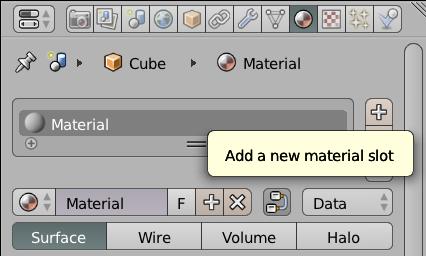
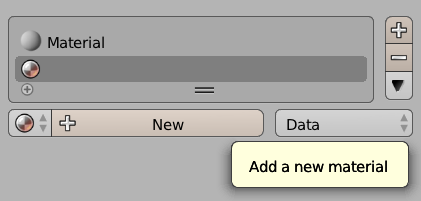
By default Blender creates a default grey material. Feel free to amend it, or add a new material to this list by clicking the little plus icon to the right of the materials list. This creates a new slot. Now click Create Material to proceed.
Give it a nice name, then pick a Diffuse colour to change the appearance of your entire object. You’ll even see a nice preview of your new material.
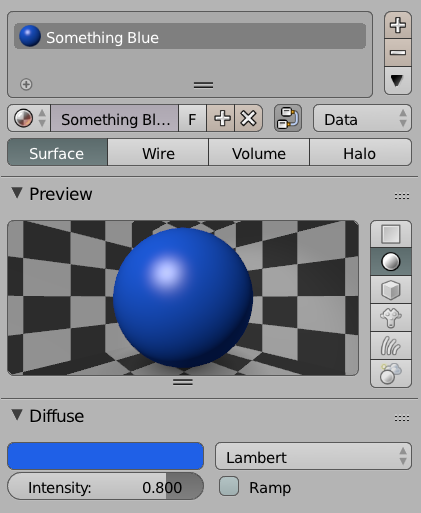
See where it says Lambert? Pick something else and see the effect. This describes the basic reflective properties of your object – it’s a Blender internal thing, so it won’t matter when you come to export your object for use in another 3D application.
Read more